NAME
ComChan — A Blazingly Fast Minimal Serial Monitor written in Rust
SYNOPSIS
brew install Vaishnav-Sabari-Girish/taps/comchanINFO
DESCRIPTION
A Blazingly Fast Minimal Serial Monitor written in Rust
README

ComChan (Communication Channel)
A Blazingly Fast Serial Monitor for Embedded Systems and Serial Communication

Features • Installation • Documentation • Examples • Contributing
Table of Contents
Installation
Choose your preferred installation method:
From crates.io
[!NOTE] The easiest way to install ComChan is via
cargo install
# Install from source cargo install comchanInstall the binary directly (faster)
cargo binstall comchan
Verify the installation:
comchan --version
From AUR
For Arch Linux users, ComChan is available in the AUR (thanks to orhun!):
# Using yay yay -S comchanUsing paru
paru -S comchan
Using Homebrew
ComChan can be installed via Homebrew taps:
brew install Vaishnav-Sabari-Girish/taps/comchan
From source
Build from source for the latest development version:
# Clone from GitHub git clone git@github.com:Vaishnav-Sabari-Girish/ComChan.gitOr clone from Codeberg
git clone ssh://git@codeberg.org/Vaishnav-Sabari-Girish/ComChan.git
Build and run
cd ComChan cargo build --release cargo run
Documentation
📚 The full documentation for ComChan can be found at vaishnav.world/ComChan
Common Commands
Basic Serial Monitor
Monitor serial output from your device:
comchan -p <port> -r <baud_rate>
# OR
comchan --port <port> --baud <baud_rate>
Example:
comchan -p /dev/ttyUSB0 -r 9600
Verbose Mode
Get detailed information about the serial connection:
comchan -p <port> -r <baud_rate> -v
# OR
comchan --port <port> --baud <baud_rate> --verbose
Log Mode
Save serial output to a log file:
comchan -p <port> -r <baud_rate> -l <log_file_name>
# OR
comchan --port <port> --baud <baud_rate> --log <log_file_name>
Serial Plotter
Visualize sensor data in real-time:
comchan --port <port> --baud <baud_rate> --plot
# OR
comchan -p <port> -r <baud_rate> --plot
Automatically Detect Serial Ports
Let ComChan find your serial device automatically:
# With default baud rate (9600) comchan --autoWith custom baud rate
comchan --auto --baud <baud_rate>
OR
comchan --auto -r <baud_rate>
Example:
comchan --auto --baud 115200
Use a Configuration File
Starting from version 0.1.9, you can use a configuration file instead of command-line flags:
# Generate default configuration file
comchan --generate-config
This creates a config file at ~/.config/comchan/comchan.toml
Example Configuration:
# ComChan Configuration File
#
# This file contains default settings for comchan serial monitor.
# Command line arguments will override these settings.
#
# To use auto-detection, set port = "auto"
# Available parity options: "none", "odd", "even"
# Available flow control options: "none", "software", "hardware"
port = "auto"
baud = 9600
data_bits = 8
stop_bits = 1
parity = "none"
flow_control = "none"
timeout_ms = 500
reset_delay_ms = 1000
verbose = false
plot = false
plot_points = 100
[!NOTE] The default baud rate is
9600. You can customize it in the config file or override it with command-line flags (--auto,--port/-p,--baud/-r,--plot).
Features
Current Features ✅
- Read Serial Data - Monitor incoming serial data from any serial port
- Write to Serial Port - Send data to your serial device
- Basic Logging - Save serial output to log files
- Auto-Detect Serial Ports - Automatically find connected serial devices
- Configuration Files - Use
.tomlfiles instead of command-line flags - Terminal-Based Serial Plotter - Visualize data in real-time with the
--plotflag - Multiple Sensor Plotting - Plot multiple sensor values simultaneously with legends
Planned Features 🚧
- Export Serial Data - Write serial data to files (
.txt,.csv, and more)
Legends
- ✅ Implemented Features
- 🚧 Yet to be implemented
Examples
"Hello World" Program
Basic serial monitoring in action:

User Input
Interactive serial communication:

Serial Plotter
Real-time data visualization:

Auto Serial Port Detector
Automatic port detection in action:

Using the Configuration File
Serial Monitor (plot = false)

Serial Plotter (plot = true)

Serial Plotter Multiple Sensor Values
Plot multiple sensors simultaneously with automatic legends:

Full Working Demo
Complete workflow demonstration:

ComChan in Windows
As of Version 0.2.2, ComChan works perfectly on Windows with no limitations!
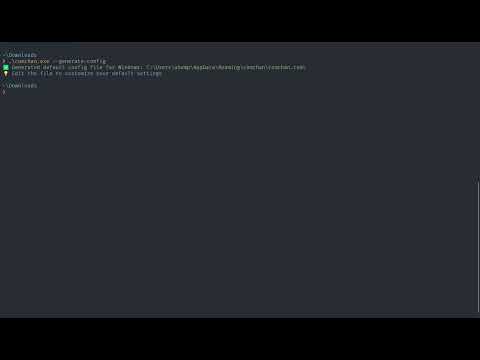
Windows Installation:
- Download the
.exefile from the releases page - Open Command Prompt or PowerShell
- Navigate to the download location:
cd Downloads - Run ComChan:
comchan.exe --help
Contributing
We welcome contributions to ComChan! 🎉
Please see our CONTRIBUTING.md for guidelines on how to contribute.
Feedback Form
We value your feedback! ComChan uses Bashforms for terminal-based feedback submission.
To submit feedback, run this in your terminal:
ssh -t bashform.me f comchan
OSCG Guidelines
Contributor Guidelines
Mentor Guidelines
Community
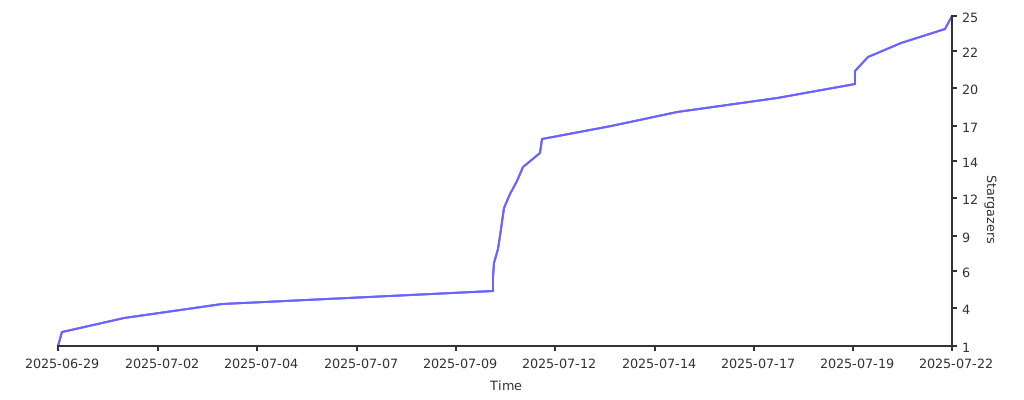
Stargazers over time (Graph)
Made with ❤️ by the ComChan Community