NAME
ConsoleEx — A .NET console window system with controls like TreeControl, ListControl, Toolbar, and more. Built on Spectre.Console.
SYNOPSIS
INFO
DESCRIPTION
A .NET console window system with controls like TreeControl, ListControl, Toolbar, and more. Built on Spectre.Console.
README
ConsoleEx





SharpConsoleUI is a terminal GUI framework for .NET — not just a TUI library, but a full retained-mode GUI framework that targets the terminal as its display surface. Cross-platform (Windows, Linux, macOS).
The rendering engine follows the same architecture as desktop GUI frameworks like WPF and Avalonia: a Measure → Arrange → Paint layout pipeline, double-buffered compositing with occlusion culling, and a unified cell pipeline where ANSI never crosses layer boundaries. The terminal is just the rasterization target.
- GUI-grade rendering engine — DOM-based layout, three-level dirty tracking, occlusion culling, adaptive Cell/Line/Smart rendering modes
- Multi-window with per-window threads — each window updates independently without blocking others
- Spectre.Console markup everywhere — just
[bold red]text[/]and it works, no complex styling APIs - Any Spectre.Console widget works as a control — Tables, BarCharts, Trees, Panels — wrap any
IRenderable - 30+ built-in controls — buttons, lists, trees, tables, text editors, dropdowns, menus, tabs, and more
- Compositor effects — PreBufferPaint/PostBufferPaint hooks for custom rendering, transitions, or even games
- Fluent builders for windows, controls, and layouts
Visit the project website: nickprotop.github.io/ConsoleEx
Browse examples with screenshots: EXAMPLES.md
Showcase
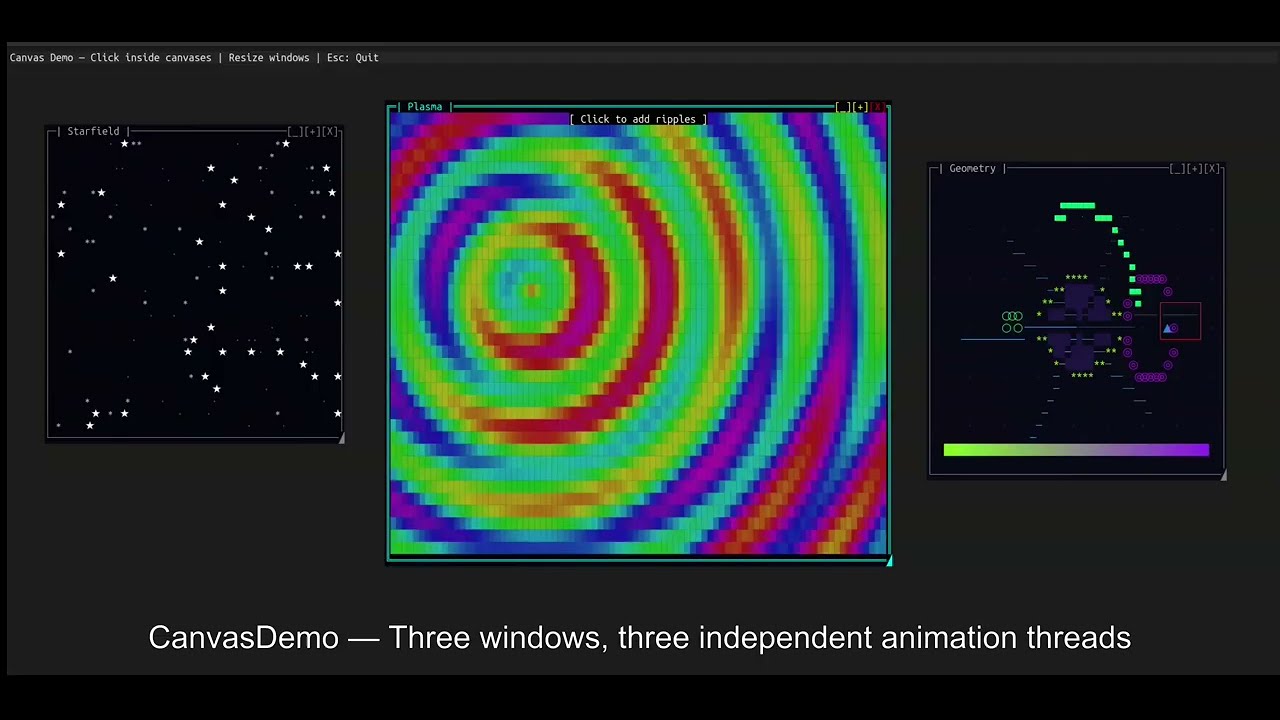
Watch SharpConsoleUI in action on YouTube

Rich controls, multiple windows, smooth gradients, real-time updates, and full-screen capabilities
Quick Start
using SharpConsoleUI; using SharpConsoleUI.Builders; using SharpConsoleUI.Drivers;// Create window system with built-in logging and state services var windowSystem = new ConsoleWindowSystem(new NetConsoleDriver(RenderMode.Buffer));
// Use fluent builder pattern var window = new WindowBuilder(windowSystem) .WithTitle("Hello World") .WithSize(50, 15) .Centered() .WithColors(Color.White, Color.DarkBlue) .Build();
// Show a notification windowSystem.NotificationStateService.ShowNotification( "Welcome", "Hello World!", NotificationSeverity.Info);
windowSystem.AddWindow(window); windowSystem.Run();
Installation
dotnet add package SharpConsoleUI
Core Features
Window Management
- Multiple Windows: Create and manage overlapping windows with proper Z-order
- Window States: Normal, maximized, minimized states
- Window Modes: Normal and modal dialogs
- Independent Window Threads: Each window can run with its own async thread for real-time updates
- Focus Management: Keyboard and mouse focus handling
- Window Cycling: Alt+1-9, Ctrl+T for window navigation
Input Handling
- Keyboard Input: Full keyboard support with modifier keys
- Mouse Support: Click, drag, and mouse event handling
- Input Queue: Efficient input processing system
Rendering Engine
- Retained-Mode GUI Pipeline: Measure → Arrange → Paint layout passes, DOM-based control tree with persistent state — same architecture as WPF/Avalonia
- Unified Cell Pipeline: All rendering flows through typed
Cellstructs (char + fg + bg). ANSI is only generated once at the terminal output boundary — no format conversions in the hot path - Two-Level Double Buffering: CharacterBuffer (window-level) + ConsoleBuffer (screen-level) with front/back buffer diff detection
- Three-Level Dirty Tracking: Window-level (did anything change?), cell-level (which cells?), screen-level (front vs back buffer comparison)
- Adaptive Rendering: Smart mode analyzes each line and chooses Cell or Line rendering based on coverage and fragmentation heuristics
- Occlusion Culling: Rectangle subtraction algorithm computes visible regions per window — occluded content is never rendered
- Multi-Pass Compositing: Normal → Active → AlwaysOnTop rendering passes with proper Z-order stacking
- Compositor Effects: PreBufferPaint/PostBufferPaint hooks for custom backgrounds, transitions, filters, and overlays
- BufferSnapshot API: Immutable buffer capture for screenshots and recording
- Themes: Multiple built-in themes (Classic, ModernGray) with runtime switching
- Plugins: Extensible architecture with DeveloperTools plugin
- Status Bars: Top and bottom status bar support
Controls Library (30+)
| Category | Controls |
|---|---|
| Text & Display | MarkupControl, FigleControl, RuleControl, SeparatorControl, SparklineControl, BarGraphControl, LogViewerControl |
| Input | ButtonControl, CheckboxControl, PromptControl, DropdownControl, MultilineEditControl |
| Data | ListControl, TreeControl, TableControl, HorizontalGridControl |
| Navigation | MenuControl, ToolbarControl, TabControl |
| Layout | ColumnContainer, SplitterControl, ScrollablePanelControl, PanelControl |
| Advanced | SpectreRenderableControl (wraps any Spectre.Console IRenderable), ProgressBarControl, TerminalControl |
API Usage
SharpConsoleUI provides a fluent API with built-in logging, state services, and modern C# features.
1. Built-in Services
The library includes built-in logging and state services - no DI setup required:
var windowSystem = new ConsoleWindowSystem(new NetConsoleDriver(RenderMode.Buffer));// Built-in logging (outputs to file, never console) windowSystem.LogService.LogAdded += (s, entry) => { /* handle log */ };
// Built-in state services windowSystem.NotificationStateService.ShowNotification("Title", "Message", NotificationSeverity.Info); windowSystem.ModalStateService.HasModals; windowSystem.FocusStateService.FocusedWindow;
Enable debug logging via environment variables:
export SHARPCONSOLEUI_DEBUG_LOG=/tmp/consoleui.log
export SHARPCONSOLEUI_DEBUG_LEVEL=Debug
2. Fluent Window Builders
using SharpConsoleUI.Builders;// Create windows using fluent API var mainWindow = new WindowBuilder(windowSystem) .WithTitle("Modern Application") .WithSize(80, 25) .Centered() .WithColors(Color.White, Color.DarkBlue) .Resizable() .Movable() .WithMinimumSize(60, 20) .Build();
// Dialog template - applies title, size, centered, modal automatically var dialog = new WindowBuilder(windowSystem) .WithTemplate(new DialogTemplate("Confirmation", 40, 10)) .Build();
// Tool window template - applies title, position, size automatically var toolWindow = new WindowBuilder(windowSystem) .WithTemplate(new ToolWindowTemplate("Tools", new Point(5, 5), new Size(30, 15))) .Build();
3. Independent Window Threads
KEY FEATURE: Each window can run with its own async thread, enabling true multi-threaded UIs where windows update independently.
// Create a window with an independent async thread var clockWindow = new WindowBuilder(windowSystem) .WithTitle("Digital Clock [1s refresh]") .WithSize(40, 12) .WithAsyncWindowThread(UpdateClockAsync) // Async method runs independently .Build();// The async method receives Window and CancellationToken private async Task UpdateClockAsync(Window window, CancellationToken ct) { while (!ct.IsCancellationRequested) // Runs until window closes { try { var now = DateTime.Now;
// Find and update control by name var timeControl = window.FindControl<MarkupControl>("timeDisplay"); timeControl?.SetContent(new List<string> { $"[bold cyan]{now:HH:mm:ss}[/]", $"[yellow]{now:dddd}[/]", $"[white]{now:MMMM dd, yyyy}[/]" }); await Task.Delay(1000, ct); // Update every second } catch (OperationCanceledException) { break; } // Clean shutdown }
}
Benefits:
- True Parallelism: Multiple windows update simultaneously without blocking
- Real-time Data: Perfect for dashboards, monitors, live feeds
- Clean Cancellation: CancellationToken handles automatic cleanup on window close
- No Manual Threading: Framework manages thread lifecycle
4. Resource Management
using SharpConsoleUI.Core;// Automatic resource disposal using var disposableManager = new DisposableManager();
// Register resources for automatic cleanup var window1 = disposableManager.Register(CreateWindow("Window 1")); var window2 = disposableManager.Register(CreateWindow("Window 2"));
// Register custom cleanup actions disposableManager.RegisterDisposalAction(() => { // Perform custom cleanup });
// Create scoped disposals using var scope = disposableManager.CreateScope(); scope.Register(temporaryWindow); scope.RegisterDisposalAction(() => SaveTempData()); // Scope automatically disposes when using block exits
5. Event Handlers with Window Access
All event handlers in fluent builders include a window parameter, enabling access to other controls via FindControl<T>():
// Create controls with names window.AddControl( Controls.Markup("[bold]Status:[/] Ready") .WithName("status") .Build() );window.AddControl( Controls.Prompt("Enter name:") .WithName("nameInput") .OnInputChanged((sender, text, window) => { // Access other controls through window parameter var status = window.FindControl<MarkupControl>("status"); status?.SetContent($"[bold]Status:[/] Typing... ({text.Length} chars)"); }) .Build() );
window.AddControl( Controls.Button("Submit") .OnClick((sender, e, window) => { var nameInput = window.FindControl<PromptControl>("nameInput"); var status = window.FindControl<MarkupControl>("status");
if (string.IsNullOrWhiteSpace(nameInput?.Text)) { status?.SetContent("[red]Error:[/] Name is required"); } else { status?.SetContent($"[green]Submitted:[/] {nameInput.Text}"); nameInput.Text = ""; } }) .Build()
);
Available Event Handler Signatures
All fluent builders provide event handlers with window access:
| Builder | Event Method | Event Handler Signature |
|---|---|---|
| ButtonBuilder | OnClick | (sender, ButtonControl, Window) |
| ListBuilder | OnItemActivated | (sender, ListItem, Window) |
| ListBuilder | OnSelectionChanged | (sender, int, Window) |
| ListBuilder | OnSelectedItemChanged | (sender, ListItem?, Window) |
| CheckboxBuilder | OnCheckedChanged | (sender, bool, Window) |
| DropdownBuilder | OnSelectionChanged | (sender, int, Window) |
| DropdownBuilder | OnSelectedItemChanged | (sender, DropdownItem?, Window) |
| PromptBuilder | OnEntered | (sender, string, Window) |
| PromptBuilder | OnInputChanged | (sender, string, Window) |
This enables pure declarative UIs where all control interactions happen through named lookups, eliminating the need to maintain field references.
Architecture Overview
Core Architecture
┌─────────────────────────────────────────────────────────────┐
│  Application Layer (Your Code)                              │
│  └── Window Builders, Event Handlers, Controls              │
├─────────────────────────────────────────────────────────────┤
│  Framework Layer                                            │
│  ├── Window Builders (Fluent API)                           │
│  ├── State Services (Focus, Modal, Notification, etc.)      │
│  ├── Logging Service (ILogService)                          │
│  └── Resource Management (DisposableManager)                │
├─────────────────────────────────────────────────────────────┤
│  Layout Layer                                               │
│  ├── DOM Tree (LayoutNode hierarchy)                        │
│  ├── Measure → Arrange → Paint passes                       │
│  └── Layout containers (Stack, Column, Absolute, Fill)      │
├─────────────────────────────────────────────────────────────┤
│  Rendering Layer                                            │
│  ├── Multi-pass renderer (Normal → Active → AlwaysOnTop)    │
│  ├── Occlusion culling (visible region calculation)         │
│  ├── Border caching (CharacterBuffer-based)                 │
│  └── Portal system (floating overlays, dropdowns)           │
├─────────────────────────────────────────────────────────────┤
│  Buffering Layer                                            │
│  ├── CharacterBuffer (window-level cell buffer)             │
│  ├── ConsoleBuffer (screen-level double buffer)             │
│  └── Adaptive dirty tracking (Cell/Line/Smart modes)        │
├─────────────────────────────────────────────────────────────┤
│  Driver Layer                                               │
│  ├── IConsoleDriver abstraction                             │
│  ├── NetConsoleDriver (production)                          │
│  ├── HeadlessConsoleDriver (testing)                        │
│  └── Raw libc I/O (Unix) / Console API (Windows)            │
└─────────────────────────────────────────────────────────────┘
The terminal is the rasterization target. CharacterBuffer is the framebuffer. ConsoleBuffer is the display controller that diff-scans and outputs only changed cells — like a GPU compositor, but with characters instead of pixels.
Spectre.Console Integration
SharpConsoleUI uses Spectre.Console for rich text markup, but the rendering engine is independent:
- Markup as Input: Controls use Spectre markup (
[bold red]text[/]) as a convenient authoring format - ANSI as Intermediate: Spectre renders markup to ANSI strings, which
AnsiParserconverts to typedCellstructs (char + foreground + background) - Cells as Pipeline: From that point, everything flows as cells through CharacterBuffer → ConsoleBuffer → terminal output
- Any Spectre Widget:
SpectreRenderableControlwraps anyIRenderable(Tables, Trees, Charts) as a window control
ANSI exists only within the control paint phase — it never reaches the screen buffer. The unified cell pipeline ensures type-safe rendering from control to terminal, with no format conversions in the hot path.
Modern C# Features Used
- Records: Immutable data structures (WindowBounds, InputEvent, etc.)
- Nullable Reference Types: Explicit null handling
- Pattern Matching: Enhanced switch expressions
- Async/Await: Throughout the framework
- Top-level Programs: Simplified entry points
- Init-only Properties: Immutable initialization
- Primary Constructors: Concise record definitions
Examples
Complete Modern Application
using SharpConsoleUI; using SharpConsoleUI.Builders; using SharpConsoleUI.Controls; using SharpConsoleUI.Core; using SharpConsoleUI.Drivers;namespace MyApp;
internal class Program { static int Main(string[] args) { // Create window system (has built-in logging and state services) var windowSystem = new ConsoleWindowSystem(new NetConsoleDriver(RenderMode.Buffer)) { TopStatus = "My Modern App", BottomStatus = "ESC: Close | F1: Help" };
// Main window with fluent builder var mainWindow = new WindowBuilder(windowSystem) .WithTitle("Task Manager") .WithSize(80, 25) .Centered() .WithColors(Color.White, Color.DarkBlue) .Build(); // Add controls mainWindow.AddControl(new MarkupControl(new List<string> { "[bold yellow]Welcome to Task Manager![/]", "", "[green]Features:[/]", "• Real-time task monitoring", "• Interactive controls", "• Built-in notifications", "", "[dim]Press F2 to add a new task[/]" })); // Setup key handlers mainWindow.KeyPressed += (sender, e) => { switch (e.KeyInfo.Key) { case ConsoleKey.F2: CreateAddTaskWindow(windowSystem); e.Handled = true; break; case ConsoleKey.Escape: windowSystem.CloseWindow(mainWindow); e.Handled = true; break; } }; windowSystem.AddWindow(mainWindow); return windowSystem.Run(); } static void CreateAddTaskWindow(ConsoleWindowSystem windowSystem) { var taskWindow = new WindowBuilder(windowSystem) .WithTitle("➕ Add Task") .WithSize(50, 12) .Centered() .AsModal() .Build(); taskWindow.AddControl(new MarkupControl(new List<string> { "[bold]Add New Task[/]", "", "Enter task description and press Enter:", "" })); // Add interactive input var input = new PromptControl { Prompt = "Task: ", OnEnter = (text) => { // Handle task creation SaveTask(text); windowSystem.CloseWindow(taskWindow); return true; } }; taskWindow.AddControl(input); windowSystem.AddWindow(taskWindow, activate: true); } static void SaveTask(string taskDescription) { // Save task to storage // File.AppendAllText("tasks.txt", taskDescription + Environment.NewLine); }
}
Real-time Data Window
public static async Task CreateRealtimeWindow(ConsoleWindowSystem windowSystem) { var dataWindow = new WindowBuilder(windowSystem) .WithTitle("Real-time Data") .WithSize(60, 20) .AtPosition(10, 5) .Build();// Background task for real-time updates var updateTask = Task.Run(async () => { var random = new Random(); while (windowSystem.Windows.Values.Contains(dataWindow)) { dataWindow.ClearControls(); dataWindow.AddControl(new MarkupControl(new List<string> { "[bold blue]System Metrics[/]", $"[green]CPU Usage:[/] {random.Next(0, 100)}%", $"[yellow]Memory:[/] {random.Next(1000, 8000)}MB", $"[red]Network:[/] {random.Next(0, 1000)}KB/s", $"[cyan]Updated:[/] {DateTime.Now:HH:mm:ss}", "", "[dim]Updates every 2 seconds • ESC to close[/]" })); await Task.Delay(2000); } }); dataWindow.KeyPressed += (sender, e) => { if (e.KeyInfo.Key == ConsoleKey.Escape) { windowSystem.CloseWindow(dataWindow); e.Handled = true; } }; windowSystem.AddWindow(dataWindow);
}
Advanced Features
Built-in Themes & Theme Registry
SharpConsoleUI includes multiple built-in themes that can be switched at runtime:
// Switch to Modern Gray theme (dark theme with gray tones) windowSystem.ThemeRegistry.SetTheme("ModernGray");// Switch to Classic theme (navy blue windows, traditional look) windowSystem.ThemeRegistry.SetTheme("Classic");
// Available built-in themes: // - "Classic": Navy blue windows with traditional styling // - "ModernGray": Modern dark theme with gray color scheme
Theme changes apply immediately to all windows and controls, enabling dynamic appearance customization.
Plugin System
The DeveloperTools plugin provides built-in development tools and diagnostics:
// Load the built-in DeveloperTools plugin windowSystem.PluginStateService.LoadPlugin<DeveloperToolsPlugin>();// Switch to DevDark theme (provided by plugin) windowSystem.SwitchTheme("DevDark");
// Create Debug Console window from plugin var debugWindow = windowSystem.PluginStateService.CreateWindow("DebugConsole"); windowSystem.AddWindow(debugWindow);
// Get diagnostics service from plugin (agnostic - no type knowledge required!) var diagnostics = windowSystem.PluginStateService.GetService("Diagnostics"); if (diagnostics != null) { var report = (string)diagnostics.Execute("GetDiagnosticsReport")!; }
DeveloperTools Plugin Provides:
- DevDark Theme: Dark developer theme with green terminal-inspired accents
- LogExporter Control: Export and filter application logs
- DebugConsole Window: Interactive debug console for runtime inspection
- Diagnostics Service: System diagnostics and performance metrics (agnostic IPluginService)
Create custom plugins by implementing IPlugin for application-specific tools and extensions.
Custom Themes
using SharpConsoleUI.Themes;public class MyDarkTheme : ITheme { public Color WindowBackgroundColor => Color.Black; public Color WindowForegroundColor => Color.White; public Color ActiveBorderForegroundColor => Color.Cyan; public Color InactiveBorderForegroundColor => Color.DarkGray; public Color ActiveTitleForegroundColor => Color.Yellow; public Color InactiveTitleForegroundColor => Color.Gray; public Color DesktopBackgroundColor => Color.DarkBlue; public Color DesktopForegroundColor => Color.White; public char DesktopBackroundChar => '░'; }
// Apply theme windowSystem.Theme = new MyDarkTheme();
Compositor Effects
SharpConsoleUI v2.0+ exposes the rendering buffer for custom backgrounds and post-processing effects via PreBufferPaint and PostBufferPaint events:
// Custom animated background (renders BEFORE controls) public class FractalWindow : Window { public FractalWindow(ConsoleWindowSystem windowSystem) : base(windowSystem) { // PreBufferPaint: fires after clear, before controls paint Renderer.PreBufferPaint += (buffer, dirtyRegion, clipRect) => { // Render fractal/gradient/pattern - controls appear on top for (int y = 0; y < buffer.Height; y++) for (int x = 0; x < buffer.Width; x++) buffer.SetCell(x, y, '█', ComputeFractalColor(x, y), Color.Black); }; } }// Post-processing effect (renders AFTER controls) public class FadeInWindow : Window { private float _fadeProgress = 0f;
public FadeInWindow(ConsoleWindowSystem windowSystem) : base(windowSystem) { // PostBufferPaint: fires after controls paint, before display Renderer.PostBufferPaint += (buffer, dirtyRegion, clipRect) => { for (int y = 0; y < buffer.Height; y++) { for (int x = 0; x < buffer.Width; x++) { var cell = buffer.GetCell(x, y); var fadedFg = BlendColor(Color.Black, cell.Foreground, _fadeProgress); var fadedBg = BlendColor(Color.Black, cell.Background, _fadeProgress); buffer.SetCell(x, y, cell.Character, fadedFg, fadedBg); } } }; }
}
Use Cases:
- Custom Backgrounds: Animated fractals, gradients, patterns (PreBufferPaint)
- Transitions: Fade-in/fade-out, slide, dissolve effects (PostBufferPaint)
- Filters: Blur, sharpen, color grading, sepia tone (PostBufferPaint)
- Overlays: Glow effects, borders, highlights on focused controls
- Screenshots: Capture immutable buffer snapshots with
buffer.CreateSnapshot() - Recording: Frame-by-frame capture for replay or analysis
Example Application:
dotnet run --project Examples/CompositorEffectsExample
See the Compositor Effects Guide for complete documentation and examples.
Troubleshooting
Known Issues
Linux: Input Echo Leak (Resolved)
Affected platforms: Linux, macOS (not Windows)
Status: Fixed. On Unix, SharpConsoleUI bypasses .NET's Console infrastructure entirely using raw libc I/O for both input (read from stdin fd 0) and output (write to stdout fd 1). The terminal is put into raw mode via tcgetattr/tcsetattr, and Console.Out is redirected to /dev/null to prevent any .NET runtime code from touching terminal settings. This eliminates the echo leak at its root.
Root cause: .NET's ConsolePal.Unix calls tcsetattr when Console.ReadKey/KeyAvailable is used, briefly toggling the ECHO terminal flag. During these brief windows, raw ANSI input sequences (especially mouse reports) leak to the screen as visible garbage characters.
Solution approach inspired by Terminal.Gui v2, which solved the same problem by avoiding all .NET Console APIs on Unix. The fix can be disabled via ConsoleWindowSystemOptions(UseDirectAnsi: false) to fall back to .NET Console APIs if needed.
Related .NET issues:
- dotnet/runtime#29662 - No way to turn off tty echo via corefx API
- dotnet/runtime#24456 - Console.ReadLine echoes first few hundred milliseconds of input
Contributing
We welcome contributions! Here's how to get started:
Development Setup
git clone https://github.com/nickprotop/ConsoleEx.git
cd ConsoleEx
dotnet restore
dotnet build
Running Examples
# Comprehensive demo application cd Examples/DemoApp dotnet runConsole monitoring tool (ConsoleTop-style dashboard)
cd Examples/ConsoleTopExample dotnet run
Full screen example
cd Examples/FullScreenExample dotnet run
Plugin showcase
cd Examples/PluginShowcaseExample dotnet run
Project Structure
ConsoleEx/
├── SharpConsoleUI/           # Main library
│   ├── Core/                 # State services & infrastructure
│   ├── Logging/              # Built-in logging system
│   ├── Controls/             # UI controls
│   ├── Builders/             # Fluent builders & templates
│   ├── Helpers/              # Utility classes
│   ├── Drivers/              # Console abstraction layer
│   └── Themes/               # Theming system
├── Examples/                 # 20 example applications
│   ├── DemoApp/              # Comprehensive demo
│   ├── ConsoleTopExample/    # System monitoring dashboard
│   ├── FullScreenExample/    # Full screen demo
│   ├── PluginShowcaseExample/# Plugin system demo
│   ├── SnakeGame/            # Snake game (compositor effects)
│   ├── TextEditorExample/    # Multi-line text editor
│   ├── TabControlDemo/       # Tab control showcase
│   ├── TableDemo/            # Table control showcase
│   ├── CompositorEffectsExample/ # Visual effects demo
│   └── ...                   # And more (see Examples/)
└── Tests/                    # Unit tests
Coding Standards
- Follow C# coding conventions
- Use modern C# features (records, nullable refs, etc.)
- Include XML documentation
- Add unit tests for new features
- Maintain backward compatibility
Important: No Console Output
Do not use Console.WriteLine(), Console.Write(), or console logging providers — they corrupt the UI rendering. Use the built-in LogService or file-based logging instead.
License
This project is licensed under the MIT License - see the LICENSE.txt file for details.
Acknowledgments
- Built on Spectre.Console for rich console rendering
- Unix raw I/O approach inspired by Terminal.Gui v2
Documentation
Detailed documentation is available in separate guides:
- Examples Gallery - All examples with screenshots
- Fluent Builders - WindowBuilder and control builder APIs
- Controls Reference - Complete guide to all 30+ UI controls
- Built-in Dialogs - File pickers, folder browsers, and system dialogs
- Configuration Guide - Complete system configuration reference
- Theme System - Built-in themes, custom themes, and runtime switching
- State Services - Window state, focus, modal, and notification services
- Plugin Development - Creating custom plugins and using the plugin architecture
- Compositor Effects - Buffer manipulation, transitions, and visual effects
- Portal System - Floating portals and overlay system
- DOM Layout System - Layout engine internals
- Rendering Pipeline - Rendering architecture details
- Status System - Status bars, window task bar, and Start Menu
Links
- NuGet Package: SharpConsoleUI
- GitHub Repository: ConsoleEx
- Documentation: docs/ folder and inline XML comments
- Issues: GitHub Issues
Projects Using SharpConsoleUI
Real-world applications built with SharpConsoleUI:
| Project | Description |
|---|---|
| ServerHub | A terminal-based control panel for Linux servers and homelabs. Features 14 bundled widgets for monitoring CPU, memory, disk, network, Docker containers, systemd services, and more. Supports custom widgets in any language and context-aware actions. |
| LazyNuGet | A terminal-based NuGet package manager for .NET solutions. Search, install, update, and manage NuGet dependencies across projects with multi-source support, dependency tree visualization, and cross-platform binaries. |
| LazyDotIDE | A lightweight console-based .NET IDE with LSP IntelliSense, built-in terminal, and git integration. Works over SSH, in containers, anywhere you have a console. |
Using SharpConsoleUI in your project? Open a PR to add it to this list!
Development Notes
SharpConsoleUI was initially developed manually with core windowing functionality and double-buffered rendering. The project evolved to include modern features (DOM-based layout system, fluent builders, plugin architecture, theme system) with AI assistance. Architectural decisions and feature design came from the project author, while AI generated code implementations based on those decisions.
Made for the .NET console development community