NAME
jnv — Interactive JSON filter using jq
SYNOPSIS
brew install jnvINFO
DESCRIPTION
Interactive JSON filter using jq
README


jnv is designed for navigating JSON,
offering an interactive JSON viewer and jq filter editor.

Features
- Interactive JSON viewer and
jqfilter editor- Syntax highlighting for JSON
- Use jaq to apply
jqfilter- This eliminates the need for users to prepare
jqon their own
- This eliminates the need for users to prepare
- Configurable features via TOML configuration
- Toggle hint message display
- Adjust UI reactivity (debounce times and animation speed)
- Editor appearance and behavior
- JSON viewer styling
- Adjust completion feature display and behavior
- Keybinds
- Capable of accommodating various format
- Input: File, stdin
- Data: A JSON or multiple JSON structures that can be deserialized with StreamDeserializer, such as JSON Lines
- Auto-completion for the filter
- Only supports:
- Hint message to evaluate the filter
Installation

Homebrew
See here for more info.
brew install jnv
Or install via Homebrew Tap:
brew install ynqa/tap/jnv
MacPorts
See here for more info.
sudo port install jnv
Nix / NixOS
See package entry on search.nixos.org for more info.
nix-shell -p jnv
conda-forge
See here for more info.
pixi global install jnv
# or
cat data.json | pixi exec jnv
# or
conda install jnv
Docker
Build (In the near future, the image will be available on something of registries)
docker build -t jnv .
And Run (The following commad is just an example. Please modify the path to the file you want to mount)
docker run -it --rm -v $(pwd)/debug.json:/jnv/debug.json jnv /jnv/debug.json
Cargo
cargo install jnv
Examples
cat data.json | jnv
# or
jnv data.json
Keymap
| Key | Action |
|---|---|
| Ctrl + C | Exit |
| Ctrl + Q | Copy jq filter to clipboard |
| Ctrl + O | Copy JSON to clipboard |
| Shift + ↑, Shift + ↓ | Switch to another mode |
Editor mode (default)
| Key | Action |
|---|---|
| Tab | Enter suggestion |
| ← | Move cursor left |
| → | Move cursor right |
| Ctrl + A | Move cursor to line start |
| Ctrl + E | Move cursor to line end |
| Backspace | Delete character before cursor |
| Ctrl + U | Clear entire line |
| Alt + B | Move the cursor to the previous nearest character within set(.,|,(,),[,]) |
| Alt + F | Move the cursor to the next nearest character within set(.,|,(,),[,]) |
| Ctrl + W | Erase to the previous nearest character within set(.,|,(,),[,]) |
| Alt + D | Erase to the next nearest character within set(.,|,(,),[,]) |
Suggestion in Editor (after Tab)
| Key | Action |
|---|---|
| Tab, ↓ | Select next suggestion |
| ↑ | Select previous suggestion |
| Others | Return to editor |
JSON viewer mode
| Key | Action |
|---|---|
| ↑, Ctrl + K | Move up |
| ↓, Ctrl + J | Move down |
| Ctrl + H | Move to last entry |
| Ctrl + L | Move to first entry |
| Enter | Toggle fold |
| Ctrl + P | Expand all |
| Ctrl + N | Collapse all |
Usage
JSON navigator and interactive filter leveraging jqUsage: jnv [OPTIONS] [INPUT]
Examples:
Read from a file: jnv data.json
Read from standard input: cat data.json | jnv
Arguments: [INPUT] Optional path to a JSON file. If not provided or if "-" is specified, reads from standard input
Options: -c, --config <CONFIG_FILE> Path to the configuration file. --default-filter <DEFAULT_FILTER> Default jq filter to apply to the input data -h, --help Print help (see more with '--help') -V, --version Print version
Configuration
jnv uses a TOML format configuration file to customize various features. The configuration file is loaded in the following order of priority:
- Path specified on the command line (
-cor--configoption) - Default configuration file path
Default Configuration File Location
Following the dirs crate,
the default configuration file location for each platform is as follows:
- Linux:
~/.config/jnv/config.toml - macOS:
~/Library/Application Support/jnv/config.toml - Windows:
C:\Users\{Username}\AppData\Roaming\jnv\config.toml
If the configuration file does not exist, it will be automatically created on first run.
Configuration Options
The following settings are available in config.toml:
# Whether to hide the hint message no_hint = falseEditor settings
[editor]
Editor mode ("Insert" or "Overwrite")
mode = "Insert"
Word break characters
word_break_chars = [".", "|", "(", ")", "[", "]"]
Theme when editor is focused
[editor.theme_on_focus] prefix = "❯❯ " prefix_style = { foreground = "blue" } active_char_style = { background = "magenta" } inactive_char_style = {}
Theme when editor is not focused
[editor.theme_on_defocus] prefix = "▼ " prefix_style = { foreground = "blue", attributes = ["Dim"] } active_char_style = { attributes = ["Dim"] } inactive_char_style = { attributes = ["Dim"] }
JSON display settings
[json]
Maximum number of JSON objects to read from stream
max_streams =
JSON theme settings
[json.theme] indent = 2 curly_brackets_style = { attributes = ["Bold"] } square_brackets_style = { attributes = ["Bold"] } key_style = { foreground = "cyan" } string_value_style = { foreground = "green" } number_value_style = {} boolean_value_style = {} null_value_style = { foreground = "grey" }
Completion feature settings
[completion] lines = 3 cursor = "❯ " active_item_style = { foreground = "grey", background = "yellow" } inactive_item_style = { foreground = "grey" } search_result_chunk_size = 100 search_load_chunk_size = 50000
Keybind settings
[keybinds]
Application exit key
exit = [{ Key = { modifiers = "CONTROL", code = { Char = "c" } } }]
Copy query to clipboard key
copy_query = [{ Key = { modifiers = "CONTROL", code = { Char = "q" } } }]
Copy result to clipboard key
copy_result = [{ Key = { modifiers = "CONTROL", code = { Char = "o" } } }]
Mode switch keys
switch_mode = [ { Key = { code = "Down", modifiers = "SHIFT" } }, { Key = { code = "Up", modifiers = "SHIFT" } } ]
Editor operation keybinds
[keybinds.on_editor]
(Details omitted)
JSON viewer keybinds
[keybinds.on_json_viewer]
(Details omitted)
Application reactivity settings
[reactivity_control]
Delay time after query input
query_debounce_duration = "600ms"
Redraw delay time after window resize
resize_debounce_duration = "200ms"
Spinner animation update interval
spin_duration = "300ms"
For more details on configuration, please refer to default.toml
[!WARNING] Depending on the type of terminal and environment, characters and styles may not be displayed properly. Specific key bindings and decorative characters may not display or function correctly in certain terminal emulators.
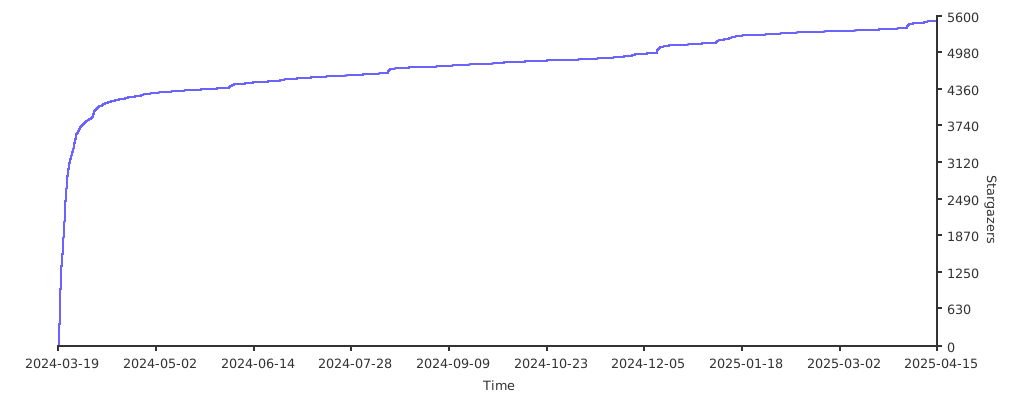
Stargazers over time