NAME
obsidian-terminal — Integrate consoles, shells, and terminals.
SYNOPSIS
pip3 install psutilINFO
DESCRIPTION
Integrate consoles, shells, and terminals.
README
Terminal for Obsidian 


Integrate consoles, shells, and terminals inside Obsidian.

Repository · Changelog · Community plugin · Related · Features · Installation · Usage · Contributing · Security
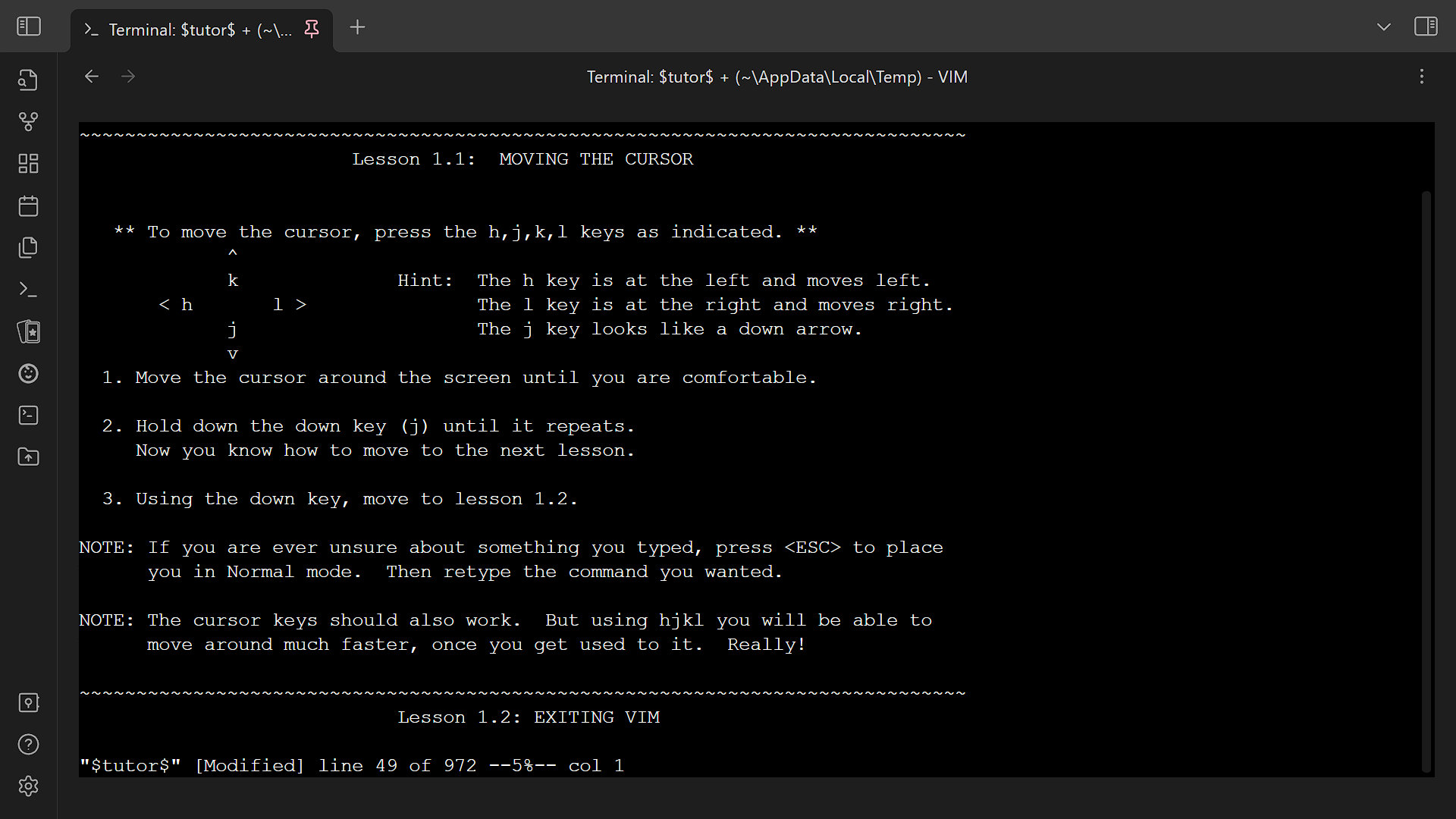
For first time users, read the installation section first!
This file is automatically opened on first install. You can reopen it in settings or command palette.
Features
- Start external terminals from Obsidian.
- Integrate terminals into Obsidian.
- Has an emulated developer console usable on all platforms.
- Supports multiple terminal profiles.
- Has built-in keyboard shortcuts.
- Automatically save and restore integrated terminal history.
- Find in terminal.
- Save terminal history as file.
- Customize terminal appearance.
Installation
- Install plugin.
- Community plugins
- Install the plugin from community plugins directly.
- Manual
- Create directory
terminalunder.obsidian/pluginsof your vault. - Place
manifest.json,main.js, andstyles.cssfrom the latest release into the directory.
- Create directory
- Building (rolling)
- Clone this repository, including its submodules.
- Install
bun. See https://bun.sh for installation. - Run
bun installin the root directory. - Run
bun run obsidian:install <vault directory>in the root directory.
- Obsidian42 - BRAT (rolling)
- See their readme.
- Community plugins
- (optional for Windows, recommended) Install Python and dependencies.
- Install Python 3.9 or above.
- (Windows only) Run
pip3 install psutil==5.9.5 pywinctl==0.0.50 typing_extensions==4.7.1. - Configure Python executable in profile settings. Press the "Check" button to validate the Python configuration. Each profile needs to be configured separately.
- Enable plugin.
- (optional) Configure plugin settings.
Usage
- To start a new external or integrated terminal
- Ribbon
- Click on the
Open terminalribbon. - Opens the default terminal if you have set up one. Otherwise, choose the desired profile.
- Click on the
- Context menu
- Right-click on files, folders, or tab headers.
- Choose the desired action (and profile).
- Command palette
- Press
Ctrl+Por click on theOpen command paletteribbon next to the left window border. - Choose the desired action (and profile).
- Press
- Select profile modal
- Choose the desired profile. Press
Ctrlto edit the profile before use. The item(Temporary profile)starts a terminal with a temporary profile.
- Choose the desired profile. Press
- Ribbon
- To save and restore integrated terminal history
- Keep the terminal open when exiting Obsidian.
- Terminal history will be restored next time Obsidian is opened.
- Additional actions
- Includes
- Clear terminal: (1), (4)
- Copy terminal: (1)
- Edit terminal: (1)
- Export, import, or edit settings: (2), (3)
- Find in terminal: (1), (4)
- Open documentation: (2), (3)
- Restart terminal: (1)
- Save terminal history: (1)
- Available by
- (1) Right-click on tab header/
More options - (2) Open settings
- (3) Open command palette
- (4) Use keyboard shortcuts
- (1) Right-click on tab header/
- Includes
Keyboard shortcuts
The keyboard shortcuts can be customized in hotkeys settings.
Global
- Toggle focus on last terminal:
Ctrl+Shift+`- Focus on last terminal: (unbound; useful if you want separate keys for focus and unfocus)
Terminal is focused
When a terminal is focused, other keyboard shortcuts (including Obsidian and plugin hotkeys) are disabled. Only the following keyboard shortcuts work. Thus you can ignore Obsidian complaining about conflicting keys for the following keyboard shortcuts.
- Clear terminal:
Ctrl+Shift+K,Command+Shift+K(Apple) - Close terminal:
Ctrl+Shift+W,Command+Shift+W(Apple) - Find in terminal:
Ctrl+Shift+F,Command+Shift+F(Apple) - Toggle focus on last terminal:
Ctrl+Shift+`(same as above)- Unfocus terminal: (unbound; useful if you want separate keys for focus and unfocus)
Theming
Theming is possible. However, there is no user-friendly interface for now.
- Open the profile editing modal.
- Click on the
Editbutton labeledData. It should open up a new modal in which there is a large textbox. - Notice
terminalOptionsin the text area labeledData. Refer to thexterm.jsdocumentation (ITerminalOptions) to set the options. Nested objects may need to be used.- You can also configure global defaults via the plugin settings page (see
Profile defaults). Those options act as a fallback for every profile unless a profile explicitly overrides them.
- You can also configure global defaults via the plugin settings page (see
- Save the profile. Changes should apply immediately.
Profiles
This plugin comes with several profile presets that you can reference.
When setting up a terminal profile, you need to distinguish between shells and terminal emulators. (Search online if needed.) Generally, integrated profiles only work with shells while external ones only work with terminal emulators.
Examples
Shells
- Bash:
bash --login - Bourne shell:
sh - Command Prompt:
cmd - Dash:
dash - Git Bash:
<Git installation>\bin\bash.exe --login(e.g.C:\Program Files\Git\bin\bash.exe) - PowerShell Core:
pwsh - Windows PowerShell:
powershell - Windows Subsystem for Linux:
wslorwsl -d <distribution name> - Z shell:
zsh --login
Terminal emulators
- Command Prompt:
cmd - GNOME Terminal:
gnome-terminal - Konsole:
konsole - Terminal (macOS):
/System/Applications/Utilities/Terminal.app/Contents/macOS/Terminal "$PWD" - Windows Terminal:
wt - iTerm2:
/Applications/iTerm.app/Contents/MacOS/iTerm2 "$PWD" - xterm:
xterm
Miscellaneous
This plugin patches require so that require("obsidian") and other Obsidian modules work in the developer console. It is toggleable as Expose internal modules in settings.
In the developer console, a context variable $$ is passed into the code, which can be used to dynamically change terminal options.
The full API is available from src/@types/obsidian-terminal.ts.
Troubleshooting
- Is the plugin useful on mobile?
- Compared to on desktop, it is much less useful. The only use for it for now is opening a developer console on mobile.
- Why do hotkeys not work?
- If the terminal is in focus, all Obsidian hotkeys are disabled so that you can type special characters into the terminal. You can unfocus the terminal by pressing
Ctrl+Shift+`, then you can use Obsidian hotkeys again.
- If the terminal is in focus, all Obsidian hotkeys are disabled so that you can type special characters into the terminal. You can unfocus the terminal by pressing
Contributing
Contributions are welcome!
Changesets
This project uses changesets to manage the changelog. When creating a pull request, please add a changeset describing the changes. Add multiple changesets if your pull request changes several things. End each changeset with ([PR number](PR link) by [author username](author link)). For example, the newly created file under the directory .changeset should look like:
---
"example": patch
---
Linting, Commit, and Hooks
This project uses the following tools to ensure code and commit quality:
- ESLint: Linting for TypeScript/JavaScript. Run with
bun run check(lint only) orbun run fix(auto-fix lint issues). - Prettier: Code formatting. Run with
bun run format(format all files) orbun run format:check(check formatting only). - markdownlint: Lints Markdown files. Run with
bun run markdownlintor auto-fix withbun run markdownlint:fix. - commitlint: Enforces conventional commit messages. Used automatically on commit via Husky.
- husky: Manages Git hooks. Pre-commit runs
lint-stagedand pre-push runs commitlint. - lint-staged: Runs linters on staged files. Markdown files are auto-fixed before commit.
Lint-staged note: The lint-staged configuration (
.lintstagedrc.mjs) invokes formatter/linter binaries directly (for exampleprettier --write,eslint --cache --fix,markdownlint-cli2 --fix) so that the list of staged files is passed through to the tool. Invoking these viabun runwould prevent lint-staged from forwarding filenames and cause the tool to operate on its default glob (or the entire repo). Usebun run formatto format the entire repository when needed.
To set up locally:
- Run
bun installto install dependencies and set up hooks. - On commit, staged Markdown files will be linted and auto-fixed.
- Commit messages are checked for conventional format.
You can manually run:
bun run check— lint all code (no formatting)bun run fix— auto-fix lint issues (no formatting)bun run format— format all code with Prettierbun run format:check— check formatting with Prettierbun run markdownlint— check all Markdown filesbun run markdownlint:fix— auto-fix Markdown filesbun run commitlint— check commit messages in range
Configuration files:
.eslintrc.*oreslint.config.mjs— ESLint rules.prettierrc— Prettier rules.prettierignore— Prettier ignore patterns.markdownlint.jsonc— markdownlint rules.commitlintrc.js— commitlint config.husky/— Git hooks
Testing
This repository uses Vitest for fast unit tests. Tests live under tests/ and should be named *.spec.ts or *.spec.js.
- Run locally (non-interactive, coverage):
bun run test(runsvitest run --coverage). - Run locally (interactive / watch):
bun run test:watch. - Git hooks: The pre-push hook runs
bun run test(see.husky/pre-push) and will block pushes if tests fail.
See vitest.config.mts for minimal config and further instructions.
Todos
The todos here, ordered alphabetically, are things planned for the plugin. There are no guarantees that they will be completed. However, we are likely to accept contributions for them.
- Connect to remote shells.
- Detect sandboxed environment and notify users.
- External link confirmation.
- Filter console log by severity in the developer console.
- Indicate that the terminal resizer has crashed or is disabled.
- Shared terminal tabs.
- Vim mode switch.
Translating
Security
We hope that there will never be any security vulnerabilities, but unfortunately it does happen. Please report them!
Supported versions
| Version | Supported |
|---|---|
| rolling | ✅ |
| latest | ✅ |
| outdated | ❌ |
Reporting a vulnerability
Please report a vulnerability by opening an new issue. We will get back to you as soon as possible.