NAME
portfolio_rs — A command line tool for managing financial investment portfolios.
SYNOPSIS
cargo install portfolio_rsINFO
DESCRIPTION
A command line tool for managing financial investment portfolios.
README


A command line tool with interactive TUI for managing financial investment portfolios written in Rust.
This project is the modern successor of finance.
Installation
Available in nixpkgs: nix-shell -p portfolio_rs or nix run nixpkgs#portfolio_rs
Install via pkgx: pkgx portfolio_rs
Install from cargo: cargo install portfolio_rs
Usage
1. Create your portfolio file
Create a JSON file with your portfolio positions.
Look at the example data for the format and data scheme.
2. Launch the portfolio tool:
Default: Customizable Interactive TUI (recommended):
portfolio_rs [JSON_FILE] [--tab TAB] [--disable COMPONENTS]
You may optionally specify which tab to open at start-up:
portfolio_rs [JSON_FILE] --tab overview     # Start on Overview & Allocation tab (default)
portfolio_rs [JSON_FILE] --tab balances     # Start on Balances tab
CLI Commands (optional):
portfolio_rs balances [JSON_FILE]     # Show balances table
portfolio_rs allocation [JSON_FILE]   # Show allocation chart
portfolio_rs performance [JSON_FILE]  # Show performance metrics
Configuration:
portfolio_rs config                   # Show config file location
portfolio_rs components               # Show available components
If no file is specified, the tool uses the file from your config. If you need help, try portfolio_rs --help for usage information.
TUI Features
The interactive Terminal User Interface (default mode) provides:
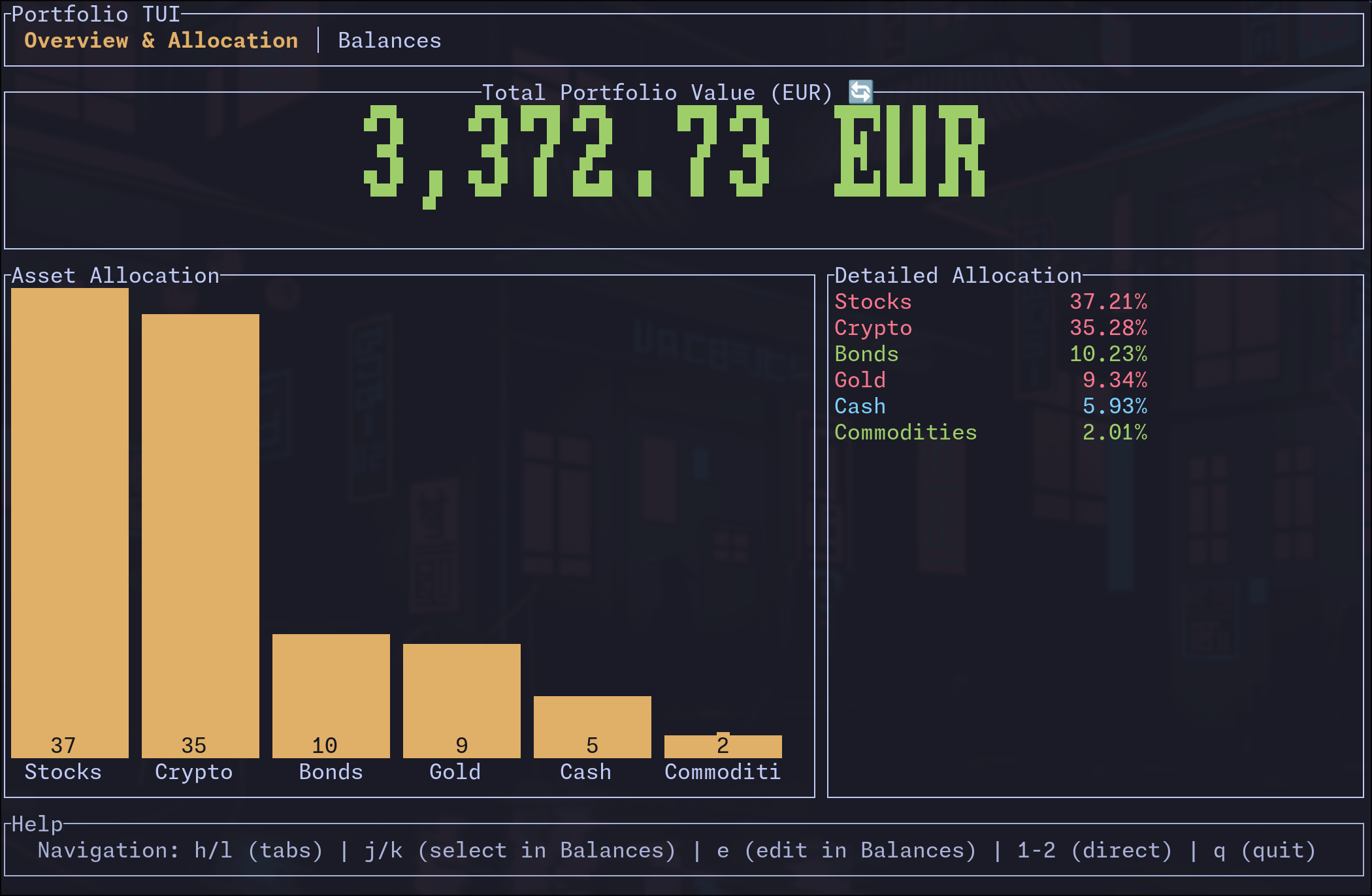
- Overview & Allocation Tab: Large display of total portfolio value, visual bar chart, and detailed allocation breakdown
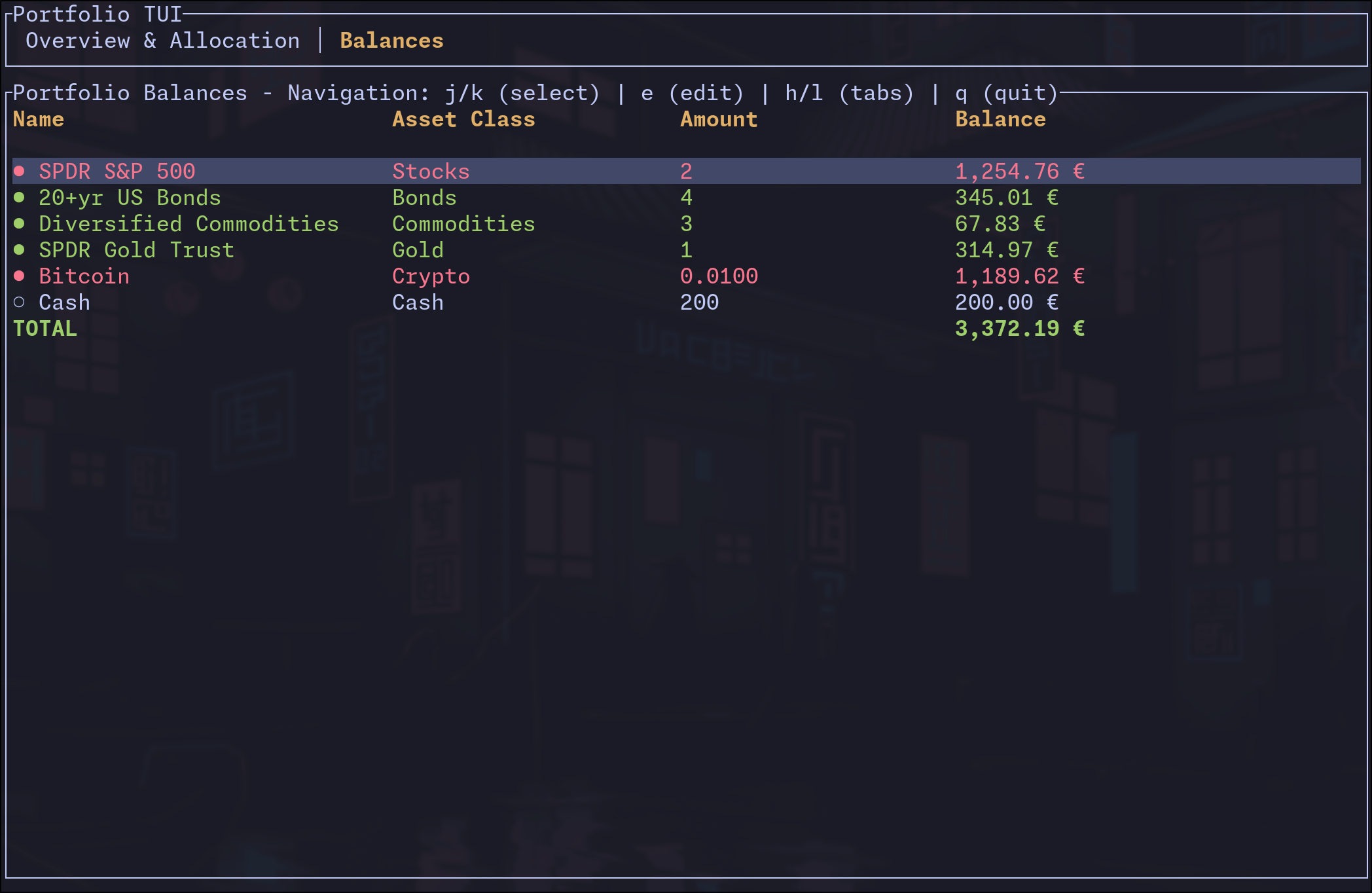
- Balances Tab: Detailed table of all positions with amounts, current values, and edit functionality
TUI Customization
You can disable specific UI components using the --disable flag with comma-separated component names:
Overview Tab Components:
tab_bar- Top navigation tabstotal_value- Large portfolio value displayasset_allocation- Visual bar chartdetailed_allocation- Allocation percentage listhelp- Help text at bottom
Balances Tab Components:
tab_bar- Top navigation tabsname- Position name columnasset_class- Asset class columnamount- Amount/quantity columnbalance- Balance/value column
Examples:
# Hide tab bar and help text portfolio_rs --disable tab_bar,help example_data.jsonShow only the allocation chart (hide detailed list)
portfolio_rs --disable detailed_allocation example_data.json
Minimal balances view (name and balance only)
portfolio_rs --disable asset_class,amount example_data.json
TUI Navigation
h/l: Switch tabs left/right (vim-style)j/k: Navigate up/down (select positions in Balances tab)e: Edit selected position amount (in Balances tab)Tab/←→: Switch between tabs1-2: Jump directly to specific tabsq/Esc: Quit the application
Edit Functionality
- Select any position with
j/kand presseto edit - Real-time balance preview and input validation
- Changes are saved automatically to your data file
- Supports decimal precision for crypto and fractional shares
Screenshots
Overview & Allocation Tab
Balances Tab with Edit Functionality
Demo

Configuration
Upon first run, portfolio_rs will create a default config file.
Use portfolio_rs config to show the config file location.
The most useful config entry is portfolio_file where you can set the absolute path to your data file. This will be used when no file is specified as an argument.
Bonus: GPG Encryption
This tool supports (gpg) encrypted json files. Decrypted values are never written to disk.
# you will need a valid gpg key in ~/.gnupg/
portfolio_rs [COMMAND] data.json.gpg
Pro Tip: Use a plugin like vim-gnupg for editing your data file.