NAME
rura — Interactive TUI scratchpad for building shell pipelines
SYNOPSIS
brew install tlipinski/tap/ruraINFO
DESCRIPTION
Interactive TUI scratchpad for building shell pipelines
README

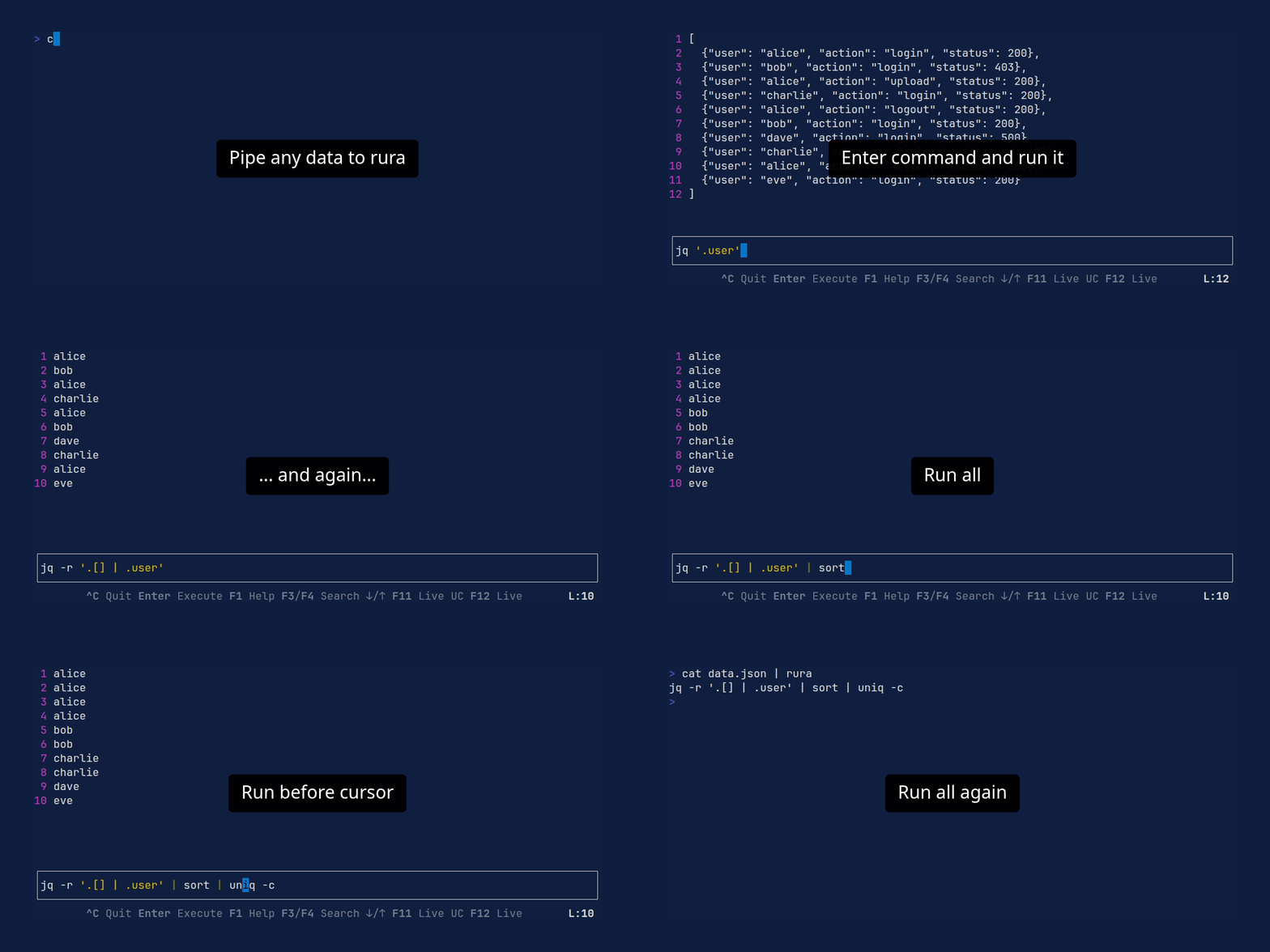
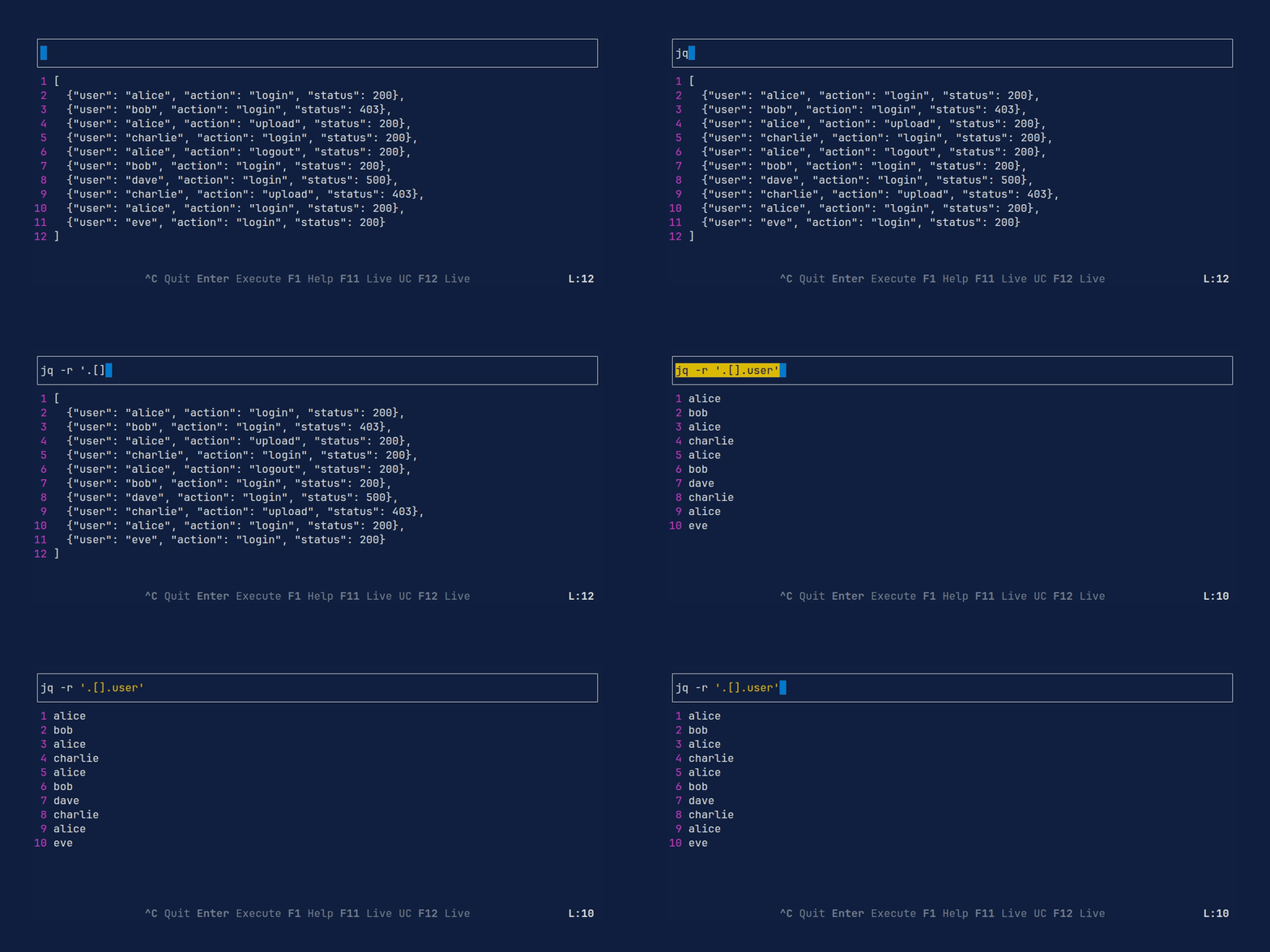
Rura transforms the tedious "edit, up-arrow, rerun" shell cycle into a fluid, interactive TUI scratchpad. It features live previews, syntax highlighting, and partial execution, allowing you to debug and iterate on commands in real time.
Features
- Partial Pipeline Execution: Execute only up to the current subcommand to debug complex pipes.
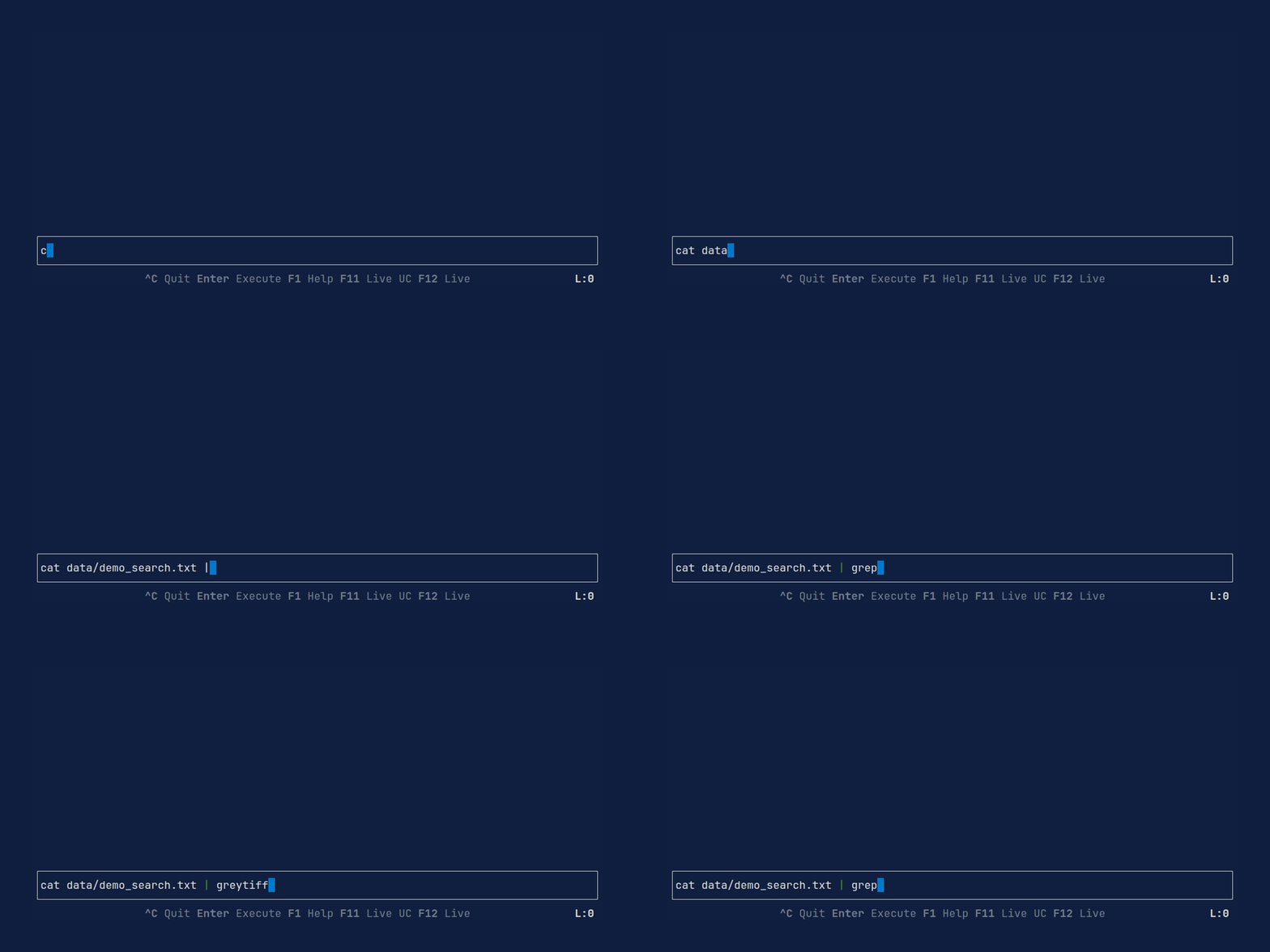
- Context-aware Completion: Tab-complete commands and file paths using your system's bash tools.
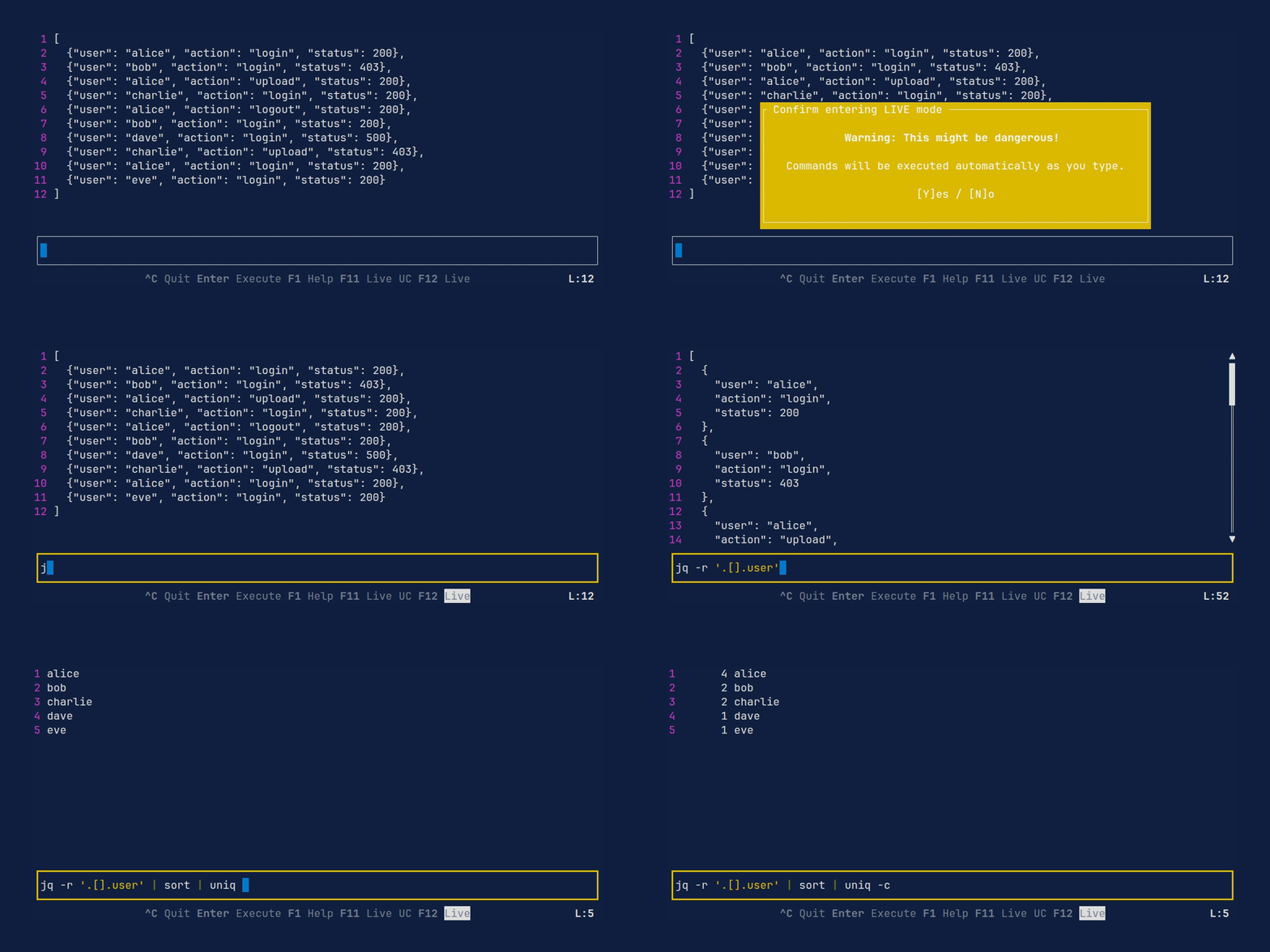
- Live Execution Modes: Real-time feedback as you type, with optional "Live Until Cursor" or "Live Full" modes.
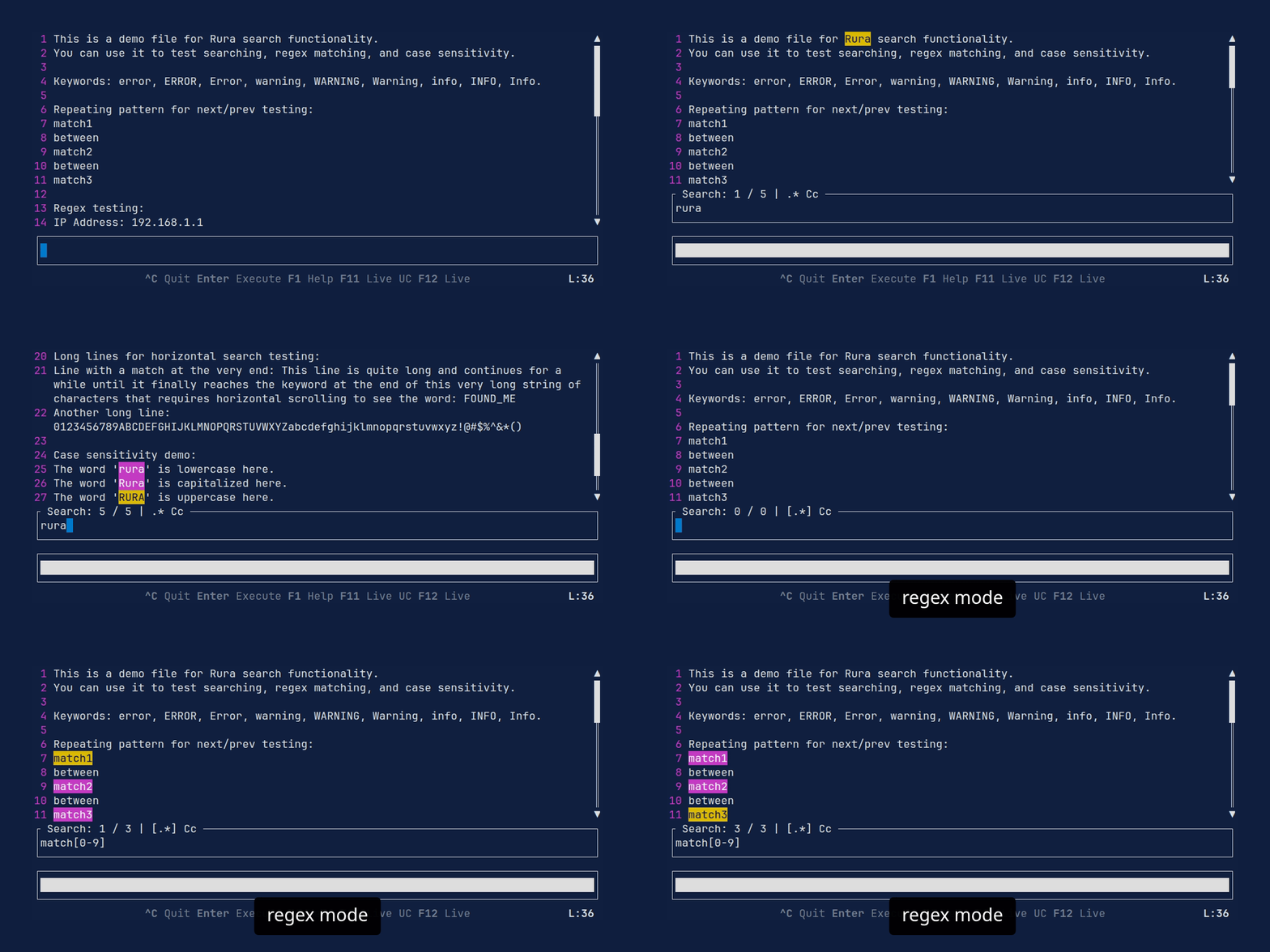
- Search: Search and highlight text within the output pane with regex support.
- Syntax Highlighting: Visual feedback for subcommand boundaries, quotes, and pipes.
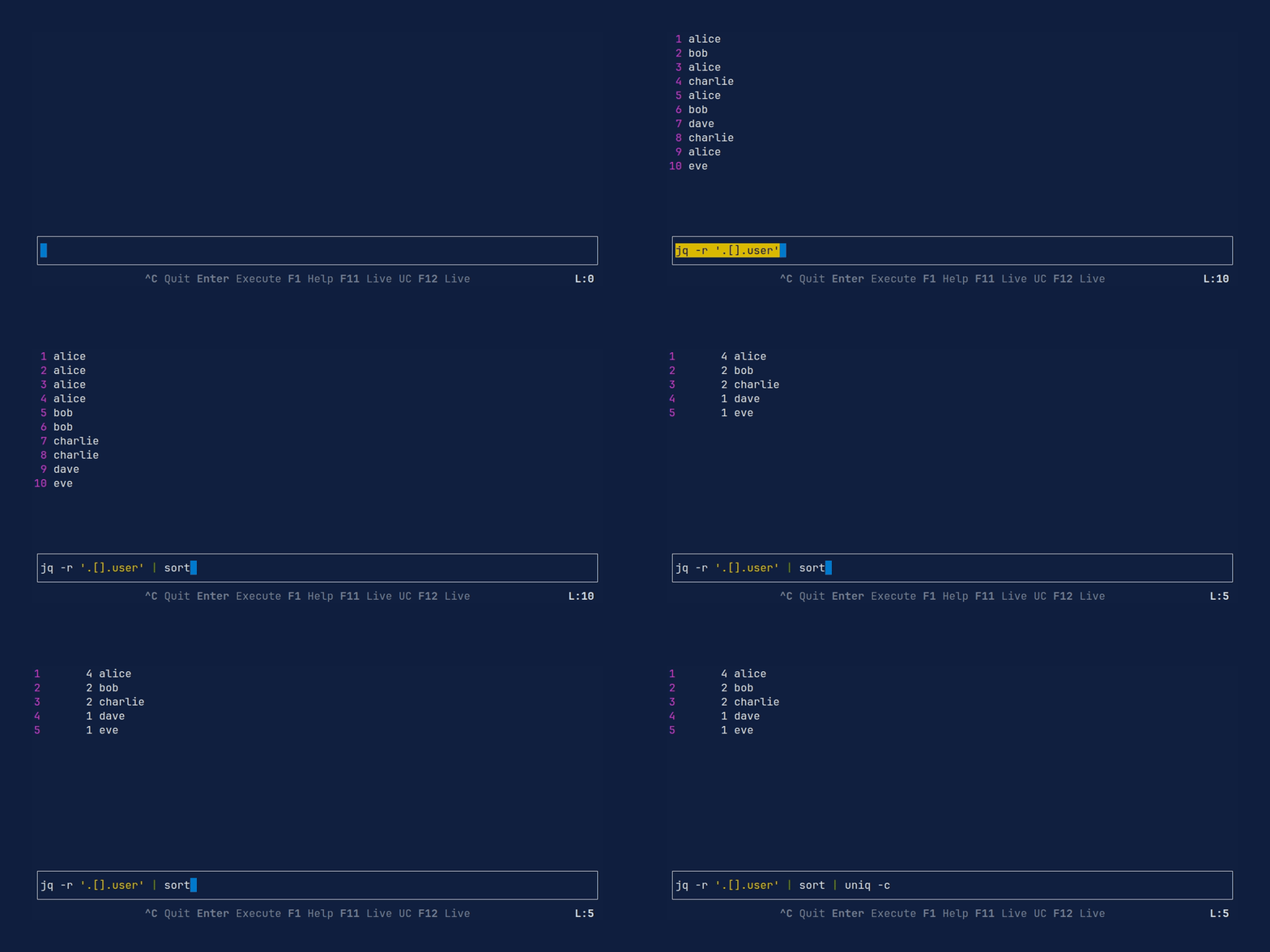
- Persistent History: Quickly access and reuse previous commands.
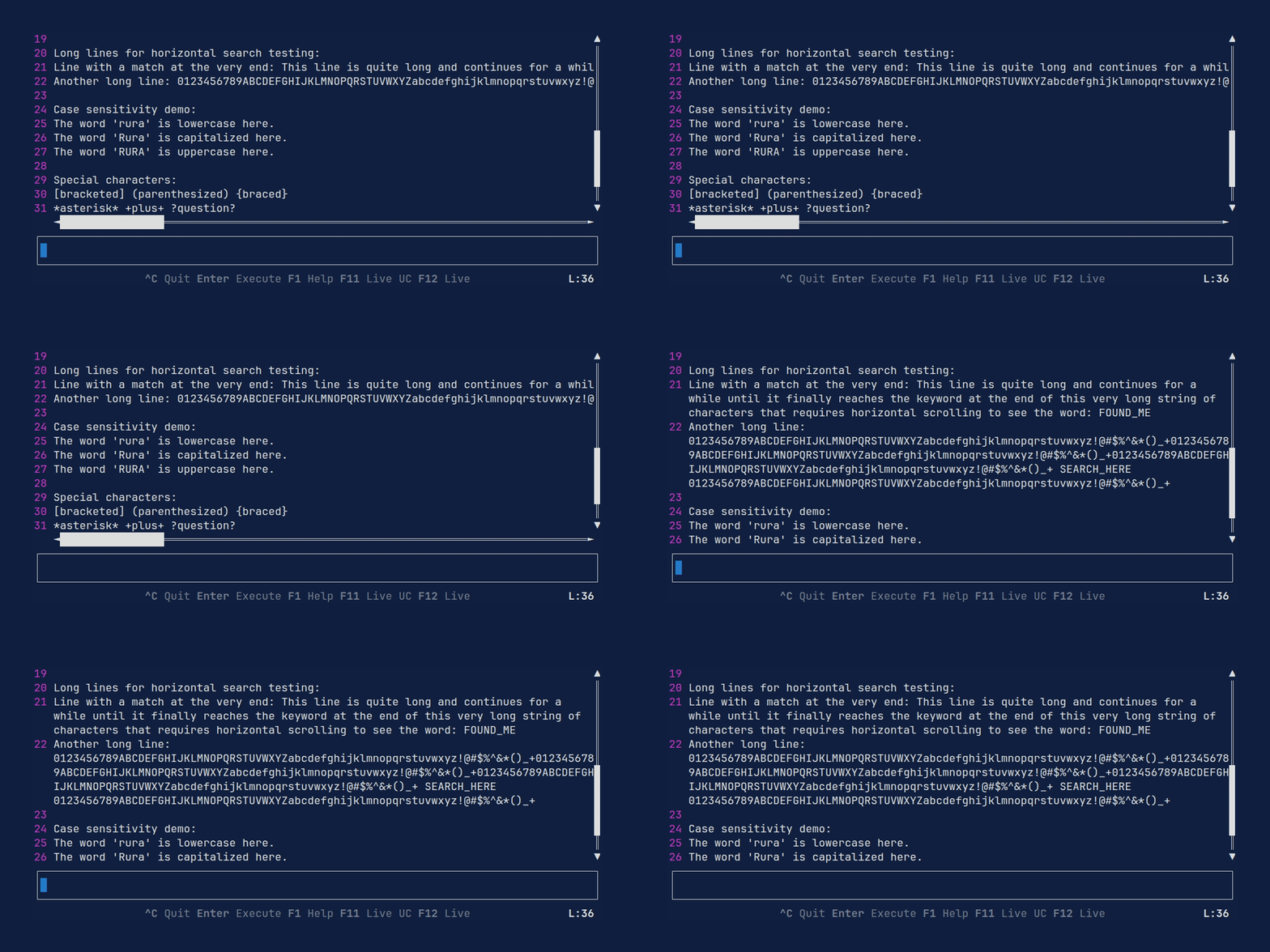
- Line Wrapping: Toggle whether long output lines wrap to fit the view.
- Flexible Error Display: Choose between "inline" errors (replacing the main view) or a dedicated "pane" (showing both output and errors).
- Customizable: Fully configurable key bindings, themes, and UI placement via TOML.
Demos
Live Execution
History
Search with regex support
Configurable layout
Command and filename completion
Line wrapping
Installation
Check the Releases page for pre-compiled binaries for your platform.
Homebrew (macOS/Linux):
brew install tlipinski/tap/rura
Arch Linux (AUR): Install via your AUR helper:
# Pre-compiled binary yay -S rura-binBuild from latest git source
yay -S rura-git
Cargo:
# From crates.io cargo install ruraFrom source
cargo install --git https://github.com/tlipinski/rura
Usage
You can start Rura by passing a file as an argument, piping data into it, or providing an initial command.
# Open a file rura --file data.jsonPipe data into rura
cat logs.txt | rura
Start with an initial command
rura --command "grep error | sort"
Print the last executed command from history without opening the UI
rura --last
CLI Arguments
-f, --file <FILE>: Path to the input file.-c, --command <COMMAND>: Initial command to populate the input field.-C, --config <FILE>: Path to a custom TOML configuration file.-l, --last: Print the last command from history and exit.-V, --version: Print version information.
Key Bindings
Command Execution
- Enter: Execute the full command pipeline.
- Alt + \: Execute the pipeline up to the current subcommand (where your cursor is).
- Alt + |: Execute the pipeline up to the previous subcommand.
- Alt + i: Reset view to show the original input data.
Navigation & View
- Arrows or Alt + h/j/k/l: Scroll the output (Left, Down, Up, Right).
- PageUp / PageDown or Alt + Up / Down: Scroll the output by page.
- Ctrl + u / Ctrl + d: Scroll up or down quickly.
- Alt + w: Toggle line wrapping.
Search
- F3 / F4: Search forward or backward in the output.
- Alt + x: Toggle regex mode.
- Alt + c: Toggle case sensitivity.
Live Execution Modes
- F11: Toggle "Live Until Cursor" mode. Executes the pipeline up to the cursor as you type (requires confirmation).
- F12: Toggle "Live Full" mode. Executes the entire pipeline as you type (requires confirmation).
Command Input & Subcommands
- Tab: Trigger forward command or file completion (requires
bashwithcompgenavailable). - Shift + Tab: Trigger backward command or file completion.
- Alt + Right: Move cursor to the next subcommand.
- Alt + Left: Move cursor to the previous subcommand.
- Home / End: Move cursor to the beginning or end of the command line.
- Ctrl + p: Previous command in history.
- Ctrl + n: Next command in history.
General
- F1: Toggle help screen.
- Ctrl + c: Exit Rura. The last executed command is printed to your terminal.
Configuration
Rura can be configured via a TOML file. The configuration path is determined as follows:
- Path specified by the
--config(or-C) CLI argument. - Path specified by the
RURA_CONFIGenvironment variable. - Default path:
- Linux:
~/.config/rura/config.toml - macOS:
~/Library/Application Support/rura/config.toml
- Linux:
General Options
command_line_placement: Set to"top"or"bottom"(default) to change where the input field is rendered.error_display_mode: Set to"inline"or"pane"(default) to choose how errors are shown:inline: Errors replace the main output view. A status indicator (e.g.,ERR(1)) appears in the status bar.pane: A dedicated error pane appears, allowing you to see the error message while still viewing the last successful output in the main area.
highlight_duration_ms: Duration in milliseconds for the temporary highlighting when executing commands (default:250).debounce_duration_ms: Duration in milliseconds to wait before executing commands in live mode (default:500).
Customizing Key Bindings
You can override any default key binding in the [keybindings] section. Multiple keys can be assigned to the same action.
[keybindings]
quit = ["ctrl+q", "ctrl+c"]
execute_full = ["enter"]
complete = ["tab"]
complete_prev = ["shift+tab"]
subcommand_next = ["alt+right"]
Customizing Theme
Colors and styles can be adjusted in the [theme] section. Supported colors include red, green, yellow, blue, magenta, cyan, gray, black, white, and hex codes (e.g., "#ffffff").
Available theme keys:
cmd_regular: Default subcommand style.cmd_regular_pipe: Style for the pipe character in regular mode.cmd_regular_current: Background style for the currently selected subcommand.cmd_highlight: Style for the subcommand being executed.cmd_highlight_pipe: Style for the pipe character during execution.cmd_highlight_current: Style for the current subcommand during execution.cmd_quoted: Style for quoted strings.cmd_invalid: Style for invalid subcommands (if parsing fails).output_highlight: Style for search results in the output.output_highlight_current: Style for the currently selected search result.line_nums: Style for line numbers in the output.
[theme.cmd_highlight]
fg = "black"
bg = "yellow"
bold = true
[theme.line_nums]
fg = "magenta"
Storage & Logs
History
Rura maintains a persistent command history. The history file is located at:
- Linux:
~/.local/share/rura/history.txt - macOS:
~/Library/Application Support/rura/history.txt
Logs
Application logs are useful for troubleshooting. They are stored at:
- Linux:
~/.cache/rura/logs.txt - macOS:
~/Library/Caches/rura/logs.txt