NAME
yatto — Interactive version-controlled todo-list for the command-line
SYNOPSIS
go install github.com/handlebargh/yatto@latestINFO
DESCRIPTION
Interactive version-controlled todo-list for the command-line
README
yatto


yatto is a terminal to-do application that stores each task as a plain JSON file and manages your task directory as a Git or Jujutsu repository.
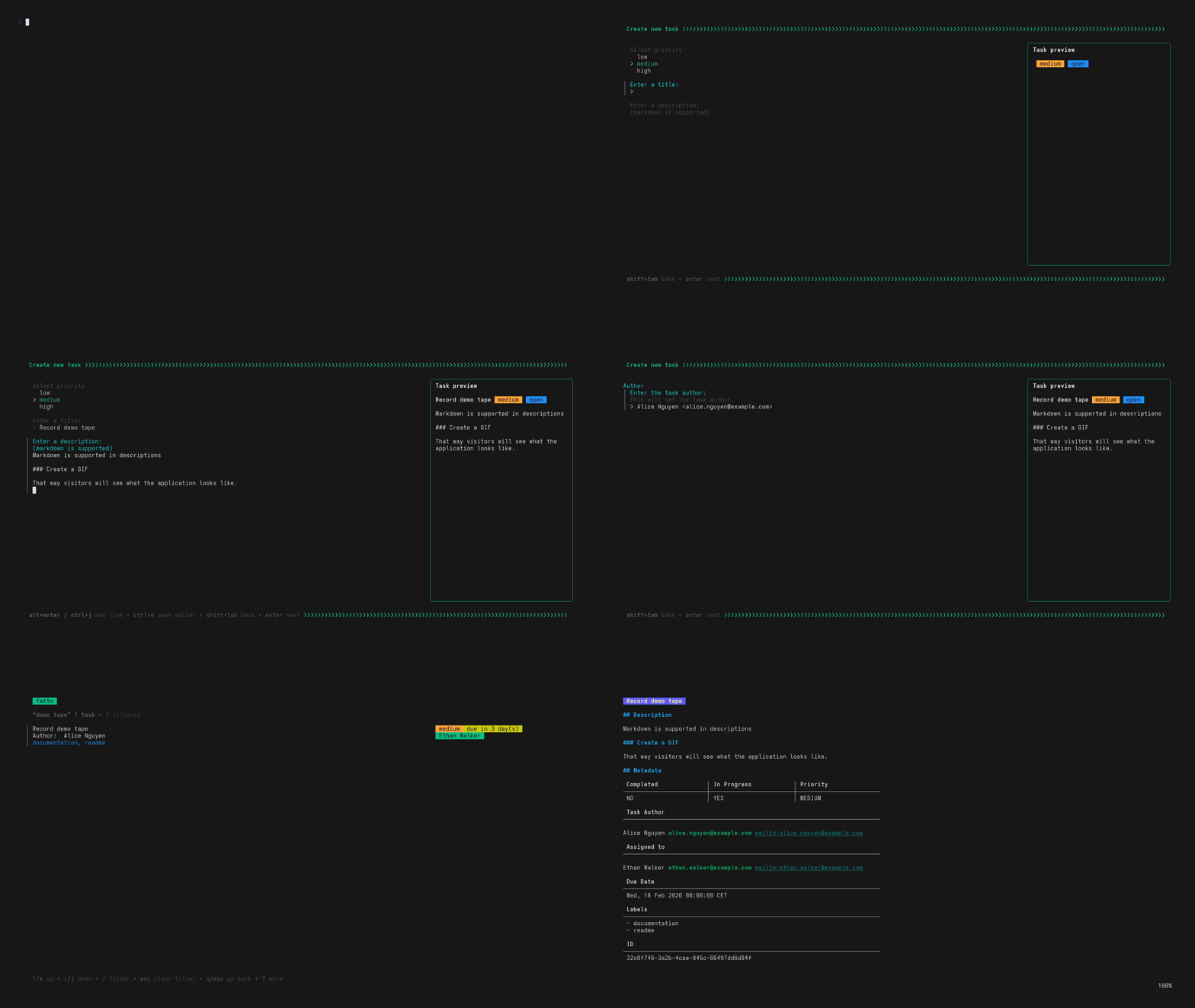
Features
- TUI interface powered by Bubble Tea
- Local file storage (one JSON file per task)
- Git or Jujutsu integration:
- full task history
- safe backup
- multi-machine sync
- collaboration via shared repositories
- Automatic commit on every change (optional auto-push)
- Project-based task organization
- Task attributes with sorting support:
- due dates
- status (open, in-progress, done)
- priority
- author / assignee
- Task attributes with filtering support:
- titles
- labels
- Markdown support for task descriptions
- Non-interactive output (
yatto print) for simple dashboards - Simple theme and color customization
Requirements
You need to have at least one of the supported version control systems installed:
- Git
- Jujutsu (jj)
Installation
AUR
If using yay, run the following command.
yay -S yatto
Or if using paru, run this command:
paru -S yatto
Nix
To install, run the following Nix commands.
Check the available package version here.
A nix-shell can be used to try yatto, before installing it permanently.
nix-shell -p yatto
On NixOS, add the following Nix code to your NixOS configuration.
environment.systemPackages = [
    pkgs.yatto
];
Scoop
To install, run the following scoop commands.
scoop bucket add scoop-handlebargh https://github.com/handlebargh/scoop-handlebargh
scoop install scoop-handlebargh/yatto
Binaries and Linux packages
Take a look at the releases for prebuilt binaries and packages.
Verifying release binaries
Install cosign
Verify the signed checksum file
cosign verify-blob \
  --bundle /path/to/checksums.txt.sig.bundle \
  --certificate-identity-regexp "https://github.com/handlebargh/yatto/.*" \
  --certificate-oidc-issuer "https://token.actions.githubusercontent.com" \
  /path/to/checksums.txt
Check that the binaries match the signed checksums
sha256sum --check --ignore-missing path/to/checksums.txt
Verifying release packages
Download and import the public key:
sudo rpm --import yatto_signing_pubkey.gpg      # For RPM
gpg --import yatto_signing_pubkey.gpg           # For DEB
Verify the package:
rpm --checksig /path/to/yatto.rpm       # RPM
dpkg-sig --verify /path/to/yatto.deb    # DEB
Install only after the signature is valid:
sudo rpm -i /path/to/yatto.rpm # RPMsudo dpkg -i /path/to/yatto.deb # DEB or sudo apt install /path/to/yatto.deb # DEB
Configuration
When you start the application for the first time,
it will ask you to set up a configuration file located at: ${HOME}/.config/yatto/config.toml
See examples/config.toml as a reference with all available configuration values.
[!TIP] Alternatively, a config file may also be supplied by adding the
--configflag:yatto --config $PATH_TO_CONFIG_FILE
Colors and themes
User interface colors are customizable. Any color value supported by lipgloss will be accepted.
Every color accepts a light and a dark value for either light or dark terminal themes.
If you feel like sharing your theme, just post it in an issue, and I'll be happy to add it to the repository.
You can also choose from one of the predefined form themes. The following config values are supported:
- Charm
- Dracula
- Catppuccin
- Base16
- Base
Set a theme like this:
[colors.form]
theme = 'Catppuccin'
Task Storage
At first startup, the application will also ask whether to create a task storage directory. By default, tasks are stored in:
${HOME}/.yatto
Each task is represented as a simple JSON file, and projects are stored as directories containing their related tasks.
The task storage location can be customized in the config file.
VCS remotes
To set up a remote
- Create a new repository on the Git host of your choice. The repository must be empty, meaning that nothing must be committed at creation (uncheck README, .gitignore and license files).
From scratch
- Run yatto and enter your SSH URL in the config dialog.
With existing storage directory
Push the current state manually to the remote.
Enable remote in the config.
Git
[git.remote]
enable = true
url = <GIT_REMOTE_URL>
Jujutsu
[jj.remote]
enable = true
url = <GIT_REMOTE_URL>
Non-interactive mode
You can print a static list of your tasks to standard output:
yatto printLimit to any project you want
Get the IDs from the directory names in your storage directory
Run this command to print all project's metadata files:
find ${HOME}/.yatto -type f -name "project.json" -exec cat {} +
yatto print --projects "2023255a-1749-4f6c-9877-0c73ab42e5ab b5811d17-dbc7-4556-886b-92047a27e0f6"
Filter labels with regular expression
The next command will only show tasks that have a label "frontend"
yatto print --regex frontend
If you want to print this list whenever you run an interactive shell,
open your ~/.bashrc (or ~/.zshrc) and add the following snippet:
# Print yatto task list only in interactive shells
case $- in
    *i*)
        if command -v yatto >/dev/null 2>&1; then
            yatto print
        fi
        ;;
esac
[!TIP] Add the --pull flag to pull from a configured remote before printing.
Multiple storage locations / repositories
I suggest working with shell aliases, for example:
alias yatto-work="yatto --config ~/.config/yatto/work.toml"
alias yatto-personal="yatto --config ~/.config/yatto/personal.toml"
License
MIT - see LICENSE
Contributing
Contributions, feedback, and ideas are welcome! See how to contribute to this repository.
Acknowledgements
Huge thanks to the Charm team and their contributors for their incredible open-source libraries, which power much of this project.